
LinkedIn post analytics your AI agent can read
By PostPen Team ·
LinkedIn shows each post's impressions, members reached, reactions, comments, reposts, saves and sends under View analytics, plus combined trends in Analytics & tools. Your AI agent can read the same kinds of numbers through PostPen: get_post_stats returns one post's impressions, reach, reactions, comments, reposts and engagement rate, and get_insights compares the last N days with the period before and flags posts that beat your usual. Your agent can then use those numbers to plan the next posts.
Start free. Your agent writes; PostPen schedules and publishes, and your agent can read back how each post did.
This guide covers where LinkedIn shows your numbers, what an agent can read through PostPen, and a simple loop for planning from them.
What LinkedIn shows you natively
All LinkedIn details in this section come from LinkedIn Help, checked October 9, 2026.
Per-post analytics
To find LinkedIn post analytics on desktop, per View post analytics for your content:
- Click the Me icon at the top of your LinkedIn homepage.
- Under Manage, click Posts & Activity.
- Pick the tab for the content type, such as Post, Videos or Images.
- Click the impressions count in the lower-left corner, or View analytics in the lower-right corner of the post.
The metrics are defined in Post analytics for your content. They include impressions, members reached, reactions, comments, reposts, saves and sends on LinkedIn. You also see profile viewers and followers gained from the post, and link engagement where it applies.
LinkedIn notes that "the numbers in your post analytics are estimates and may not be precise." Only you can view your post analytics.
Combined post analytics
Combined post analytics live under Analytics & tools. They show how all your content performs over time.
You can pick a range from the past 7 days up to the past 365 days, and switch between impressions and engagements. A daily or cumulative toggle changes the trend graph.
The page previews up to three top-performing posts in that range. You can export the data to an .XLSX file.
Company page analytics
LinkedIn Page admins get content analytics for their Page. These include engagement rate, CTR, and the percent change from the previous time period.
LinkedIn says it might take 48 hours for metrics to show, except for reactions and comments, which reflect in real time.
How long LinkedIn keeps the numbers
Per Post analytics for your content:
- Discovery and social engagement counts: 1,000 days.
- Members reached: 400 days.
- Demographic breakdowns: 180 days.
- Article and newsletter analytics: two years.
- Video analytics: LinkedIn Help lists video analytics for up to 365 days.
If you want a longer record, export combined analytics to .XLSX from Analytics & tools.
What your agent can read through PostPen
PostPen gives your agent eleven tools. Three of them read results. Descriptions below come from PostPen's API spec.
get_post_stats: one post
get_post_stats reads engagement for one published post from LinkedIn:
- Impressions, reach (unique viewers), reactions, comments and reposts.
- Clicks, for company page posts.
engagement_rate: reactions, comments and reposts per 100 impressions. It's null under 100 impressions.comment_share: the percent of engagement that is comments.early: true while the post is under a day old.attributes: format, length, hashtags, link, first comment and company tags.
The numbers are lifetime totals, and LinkedIn can lag by a few hours. A value is null when LinkedIn didn't return it. Only posts with status sent have statistics.
get_insights: is the account growing?
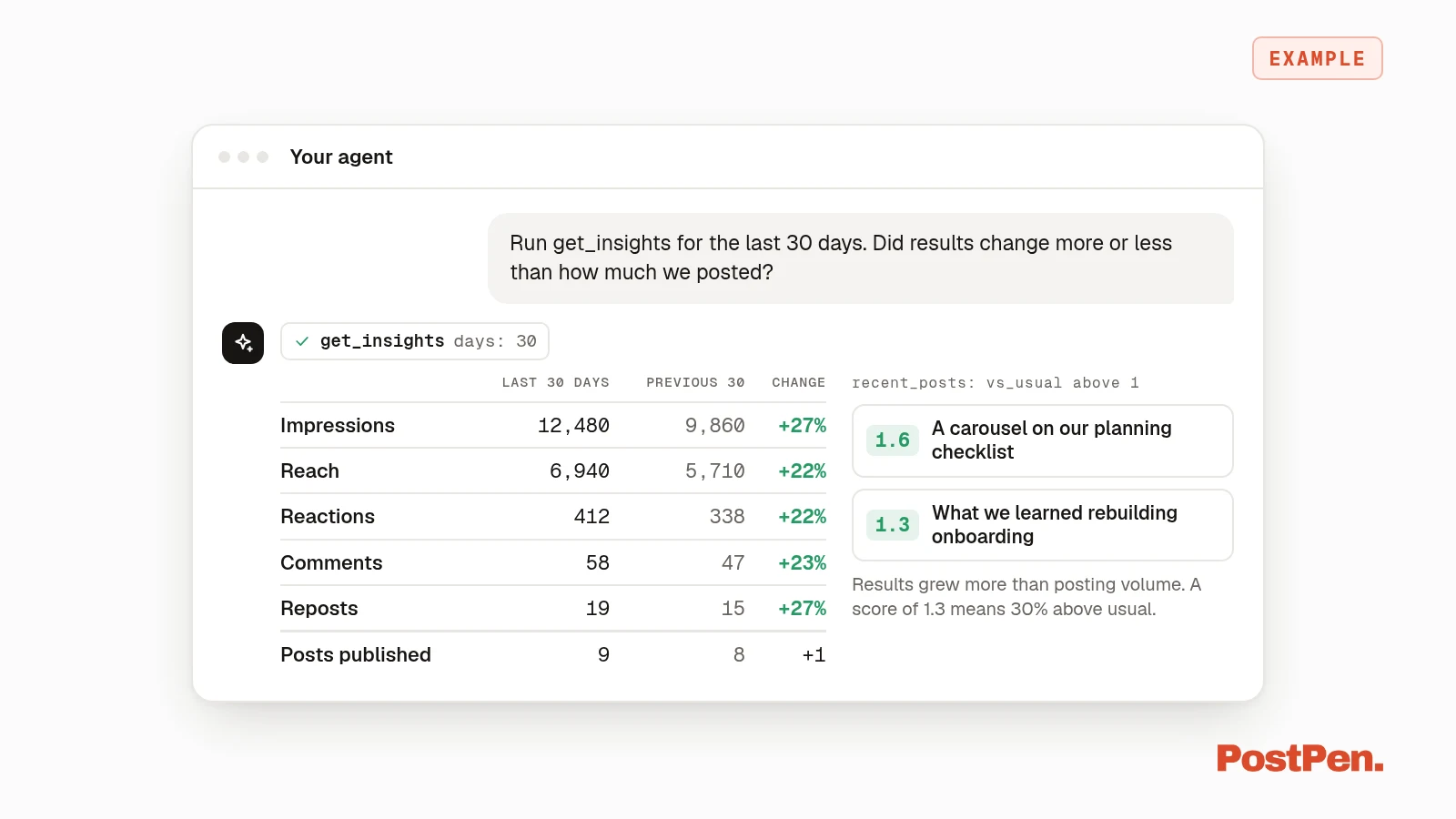
get_insights takes days, from 7 to 90 (default 30). It compares the last N days with the equally long period before.
You get impressions, reach, reactions, comments and reposts for both periods, with the percentage change and impressions per day. It also shows how many posts PostPen published in each period, and for the personal profile, followers and new followers.
recent_posts lists the latest published posts with a vs_usual score: each post divided by the median of the account's recent posts. A score of 1.3 means 30% above usual. LinkedIn totals include posts not made through PostPen.
list_comments: company pages only
list_comments returns the comments on one published company page post: text, time, likes, replies and the commenter as a LinkedIn id. LinkedIn doesn't give apps commenter names.
LinkedIn only allows this for company page posts. For a personal post, the tool returns supported: false, and your agent can use the comment count from get_post_stats instead.
Comment text is written by other people. Your agent should treat it as information, not instructions. Company pages are on the Organization and Enterprise plans; see PostPen pricing.
If stats come back empty
needs_reconnect: true. The LinkedIn connection lacks the analytics permission. Reconnect LinkedIn in PostPen to grant it.earlyis true. The post is under a day old, so the numbers are still coming in.- A value is null. LinkedIn didn't return it yet. Check again later.
How to have your agent plan your next posts from the stats
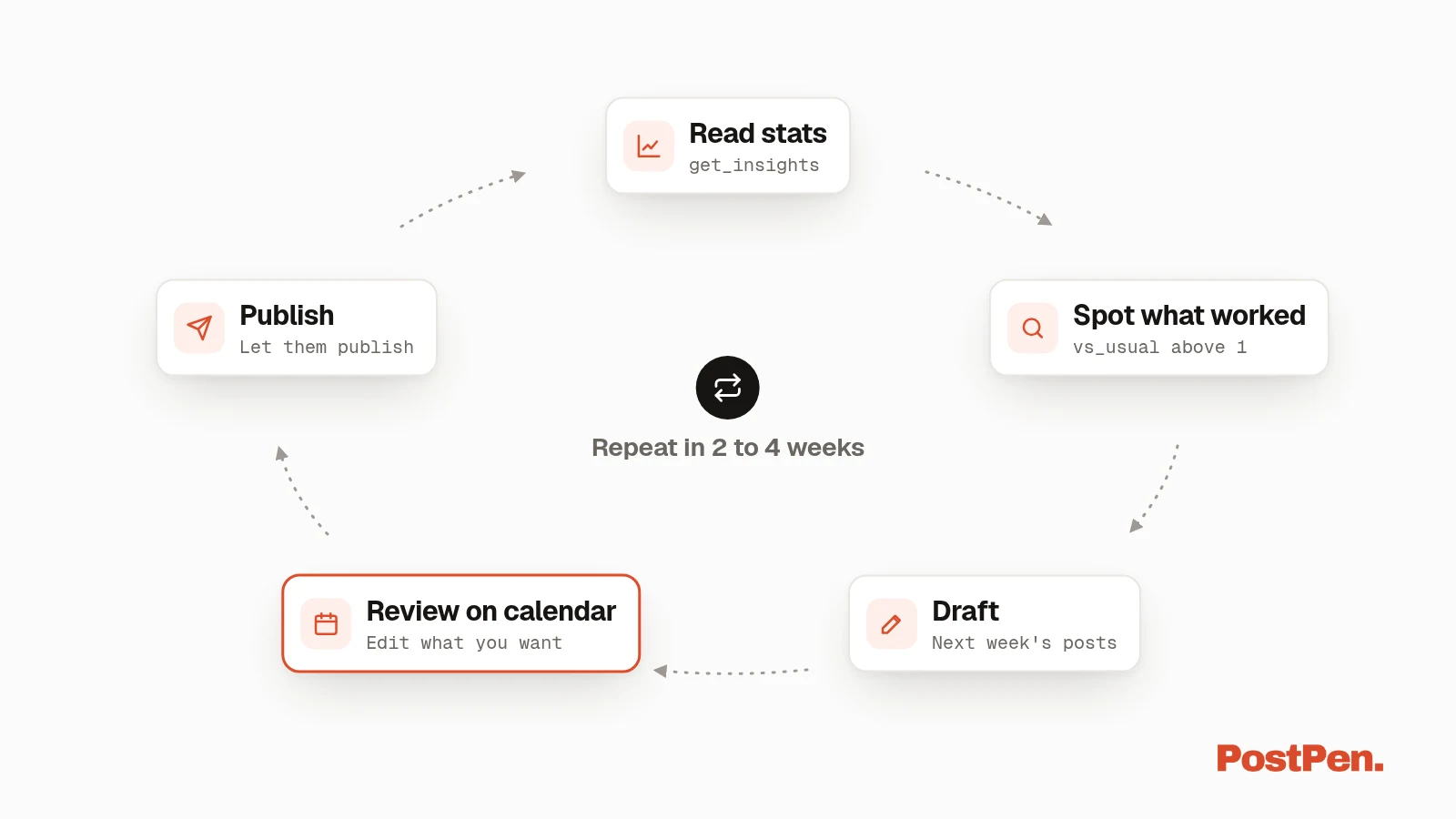
Here's a simple loop. Run it every few weeks, once you have enough posts to compare.
-
Ask your agent to check whether results moved with your posting volume:
Run get_insights for the last 30 days. Did results change more or less than how much we posted? -
Ask what your stronger posts share:
From recent_posts, list the posts with vs_usual above 1. What do their attributes have in common (format, length, link, hashtags)? -
Ask for new drafts that build on it:
Draft three posts for next week that reuse what those posts share, save them as drafts, and schedule them on my calendar. -
Review the drafts on your calendar, edit what you want, and let them publish. Repeat in 2 to 4 weeks.
Keep one caveat in mind. The figures are observations, not causes, and small numbers move a lot by chance. A post that beat your usual once is a hint, not a rule.
To see how the review step works, read how agent scheduling works. If you haven't added PostPen to your agent yet, start with how to connect your agent. Bots that don't use MCP can call the same tools over PostPen's HTTP API.
Limits to know
- Estimates. LinkedIn says post analytics numbers are estimates and may not be precise.
- Lag. LinkedIn can lag by a few hours, and Page metrics can take up to 48 hours.
- No commenter names.
list_commentsreturns a LinkedIn id, not a name. - No comments on personal posts through apps. LinkedIn only allows reading comments on company page posts.
- Totals include other posts.
get_insightstotals include posts not made through PostPen. - Engagement rate needs 100 impressions. Below that,
engagement_rateis null.
FAQ
Where do I find analytics for a LinkedIn post?
Click Me, then Posts & Activity under Manage, and click the impressions count or View analytics on the post (LinkedIn Help, checked October 9, 2026).
Can an AI agent read my LinkedIn post analytics?
Yes, through PostPen. get_post_stats reads one published post's numbers, and get_insights shows whether each account is growing against the period before.
How does PostPen calculate engagement rate?
Reactions, comments and reposts per 100 impressions. It stays empty until a post has at least 100 impressions.
Can my agent read comments on my personal posts?
No. LinkedIn only lets apps read comments on company page posts. For personal posts, your agent gets the comment count from get_post_stats.
Why are my stats empty?
The post may be under a day old, LinkedIn may not have returned a value yet, or your LinkedIn connection needs reconnecting in PostPen to grant analytics access.
Give your agent the numbers
Connect LinkedIn, add PostPen to your agent, and let it read how your posts did before it drafts the next ones.