
LinkedIn video size, length and how to post a video
By PostPen Team ·
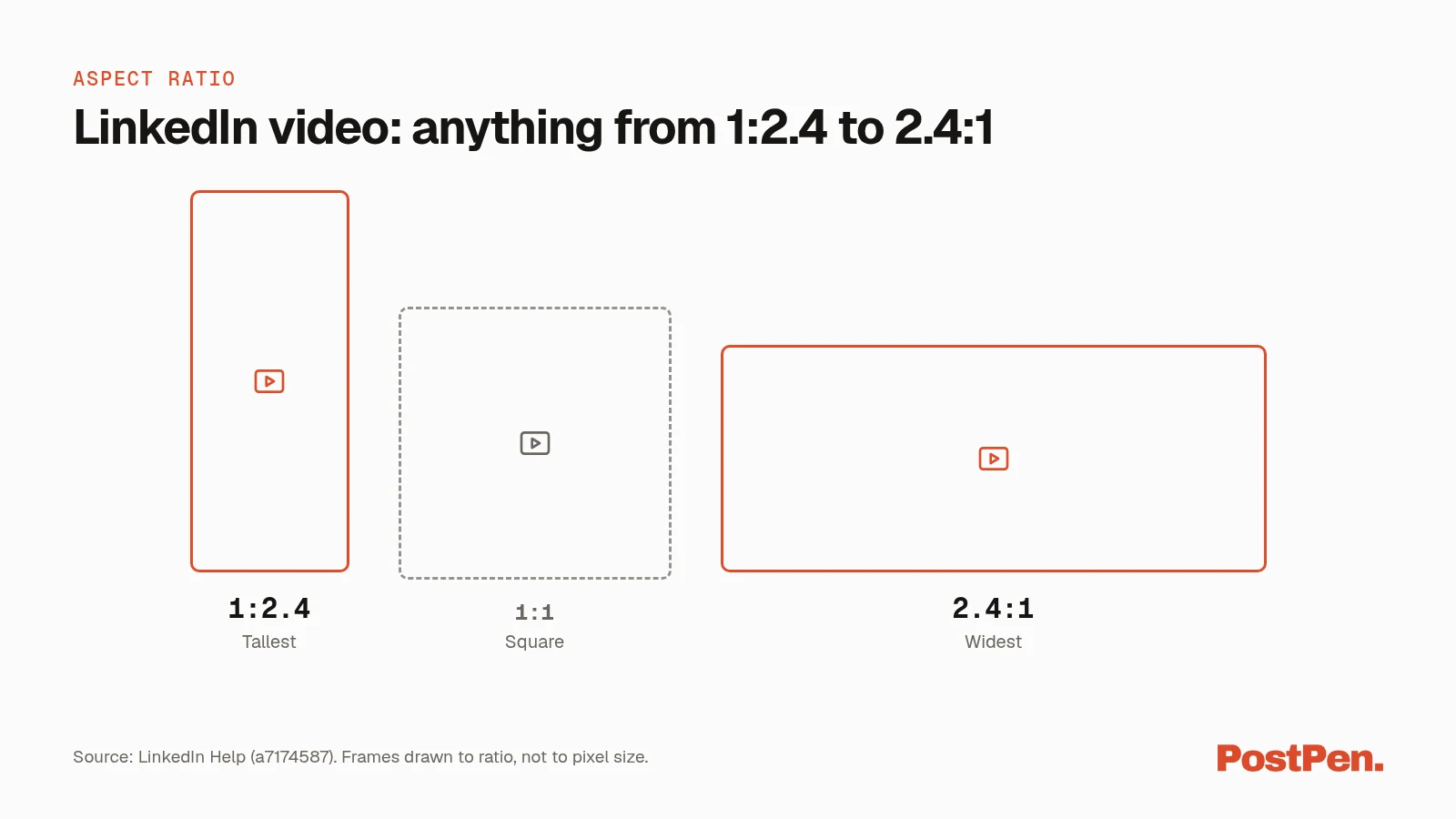
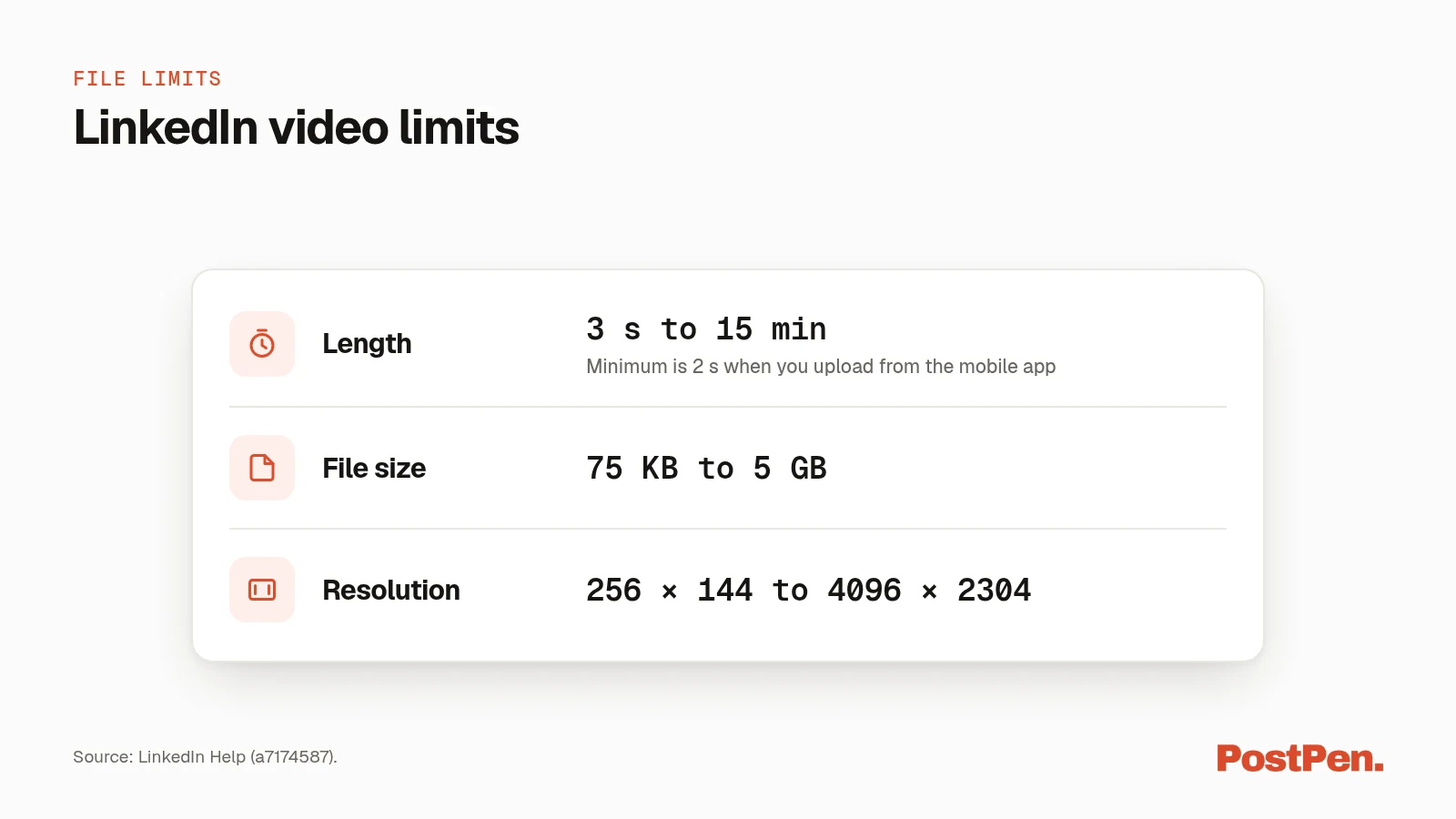
LinkedIn videos can be 3 seconds to 15 minutes long and 75 KB to 5 GB, per LinkedIn Help. Resolution can range from 256 × 144 to 4096 × 2304, with an aspect ratio between 1:2.4 and 2.4:1. To post one, click the Video icon in the share box, upload the file, add a thumbnail or captions if you like, and click Post.
This guide puts the full LinkedIn video size and length rules in one table, with the source for each row. It also covers the posting steps, why uploads fail, and how your AI agent can post a video for you.
Start free to let your agent attach videos and schedule your posts. Your agent writes the post, and PostPen schedules and publishes it.
LinkedIn video specs at a glance
Every row below comes from a LinkedIn Help page, checked October 16, 2026. These are the rules for videos you share in a post, not for video ads.
| Spec | Requirement | Source |
|---|---|---|
| File size | 75 KB to 5 GB | a7174587, checked October 16, 2026 |
| Duration | Up to 15 minutes. Minimum 3 seconds on desktop, 2 seconds in the LinkedIn mobile app | a7174587, checked October 16, 2026 |
| Resolution | 256 × 144 to 4096 × 2304 | a7174587, checked October 16, 2026 |
| Aspect ratio | 1:2.4 to 2.4:1 | a7174587, checked October 16, 2026 |
| Frame rate | 10 fps to 60 fps | a7174587, checked October 16, 2026 |
| Bit rate | 192 Kbps to 30 Mbps | a7174587, checked October 16, 2026 |
| File types | MP4, MOV, AVI, WEBM, MKV, WMV, VC1, MPEG (MPEG2, MPEG1VIDEO), DVVIDEO, QTRLE and TSCC2, on desktop, iOS and Android | a548372, checked October 16, 2026 |
LinkedIn Help gives a range, not one recommended size. Any video inside these limits, in a supported file type, can be posted.
Keep key content in the safe zone
Share videos on LinkedIn (LinkedIn Help, checked October 16, 2026) asks you to keep the top, bottom and side edges of your video free of key elements, text and logos. That way the LinkedIn interface won't cover them.
How to post a video on LinkedIn (desktop)
These steps come from Share videos on LinkedIn (LinkedIn Help, checked October 16, 2026):
- Click the Video icon in the share box at the top of your LinkedIn homepage. You can also drag and drop or paste a video into the share box.
- Click Upload from computer and select your file.
- Optionally, select Video thumbnail to upload a thumbnail, or Captions to add captions.
- Click Next.
- Click the dropdown next to your name to set Visibility (who sees the post) and Comment control (who can comment).
- Type your post text in the What do you want to talk about? field. This is optional.
- Click Post.
You can also share videos in a Group or on a LinkedIn Page, per the same page.
How to post a video on LinkedIn (mobile)
In the LinkedIn app, per a7174587 (checked October 16, 2026):
- Tap Post on the upper right.
- Tap the Video icon, then record with your camera or pick a video from your gallery.
- Edit the video if you want:
- Trim: tap the trim (scissors) icon and drag the bars to set the start and stop time.
- Stickers: tap the Stickers icon to add stickers.
- Text: tap the Text icon to add text.
- Captions: tap Captions to add auto captions or review them first.
- Tap Next on the upper right.
- Tap the Anyone dropdown next to your name to set visibility and comment control.
- Add post text if you want, then tap Post.
Captions and thumbnails
On desktop, Captions lets you add auto captions, review captions before adding them, or upload a video caption file. LinkedIn Help says auto-captions are currently supported in 10 languages, and captions for other languages may not always be available (a7174587, checked October 16, 2026).
Video thumbnail lets you upload your own thumbnail image. LinkedIn Help doesn't give a thumbnail size. For photo sizes in regular posts, see our LinkedIn image size guide.
Why your video won't upload or play
Check these first. Each comes from LinkedIn Help (checked October 16, 2026):
- Unsupported codec. A file type like ProRes may upload but won't process (a548372). Export to a supported type from the table above.
- Outside the limits. The file must be 75 KB to 5 GB and 3 seconds (2 on mobile) to 15 minutes long (a7174587).
- iPhone upload stalls. On iOS, stay in the LinkedIn app until the upload finishes. Once the video is processing, you can switch apps (a548372).
- Video is in iCloud. Videos stored in iCloud can't be uploaded in the LinkedIn mobile app. Move the video to your phone's local storage first (a548372).
- Trying to post to the immersive video feed. You can't add a video to that feed directly. It shows existing LinkedIn videos based on quality and relevance (a7174587).
On Android, the upload keeps going in the background, and LinkedIn notifies you when the video is ready to view (a548372).
Posting video from your AI agent
Through PostPen, your agent can attach one mp4 video per post, from 75 KB to 200 MB. The file comes from a public HTTPS URL or, for a local file, a create_upload link that expires in 2 hours. A video post can't also carry images or a PDF.
That limit is smaller than LinkedIn's. For a file over 200 MB, or one that isn't an mp4, post it on LinkedIn directly.
PostPen checks the file and stores a copy. None of PostPen's agent tools adds captions or a custom thumbnail, so for those, post the video on LinkedIn directly. Otherwise your agent schedules or publishes the post, and you review it on your PostPen calendar.
You can ask in plain words:
Attach demo.mp4 to a draft, write a 2-line caption, and schedule it for Thursday 10:00.
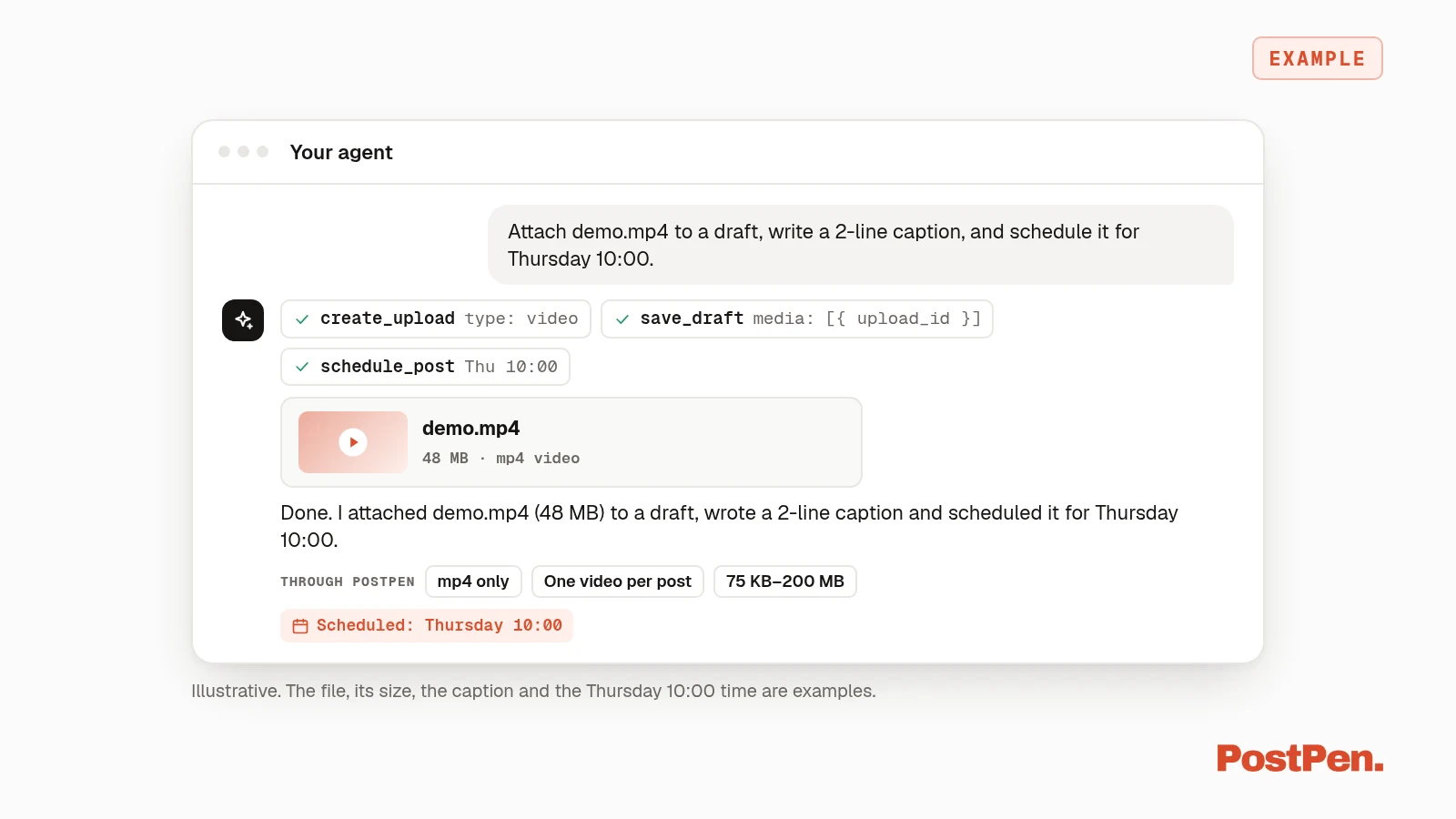
A video post schedules like any other post; see how to schedule LinkedIn posts.
Your agent writes the caption. PostPen schedules and publishes the post. See the full list of PostPen's agent tools, or connect your agent through PostPen if you haven't yet.
FAQ
15 minutes for videos posted to your feed, per LinkedIn Help. The minimum is 3 seconds on desktop and 2 seconds in the mobile app.
5 GB. The minimum is 75 KB.
Anything from 1:2.4 to 2.4:1, at a resolution between 256 × 144 and 4096 × 2304.
Check the file type and codec, the size and length limits, and on iPhone stay in the LinkedIn app until the upload finishes.
Yes, through PostPen: one mp4 per post, from 75 KB to 200 MB. For larger files or other formats, post on LinkedIn directly.
Get your video right the first time
Keep it between 3 seconds and 15 minutes, up to 5 GB, and between 1:2.4 and 2.4:1. Use a supported file type, and keep text and logos away from the edges. If your agent is posting it, send an mp4 up to 200 MB.
Start free. Your agent writes the post, and PostPen schedules and publishes it.