
ChatGPT MCP: how to connect an MCP server
By PostPen Team ·
MCP (Model Context Protocol) lets ChatGPT use tools and information from other systems through MCP servers. On ChatGPT web, you add a server as a plugin: go to Plugins, select the plus button, choose Add custom MCP server, enter the server's URL and set up authentication.
As of Oct 26, 2026, OpenAI's help article Connecting custom MCP servers in ChatGPT (12584461, OpenAI Help Center, checked October 26, 2026) says: "Custom MCP server connections and full MCP support are available for ChatGPT Business and Enterprise/Edu customers on ChatGPT web." This ChatGPT MCP guide covers the generic steps and what to check before you connect a server.
Start free. Your agent writes, PostPen schedules and publishes.
What MCP is in ChatGPT
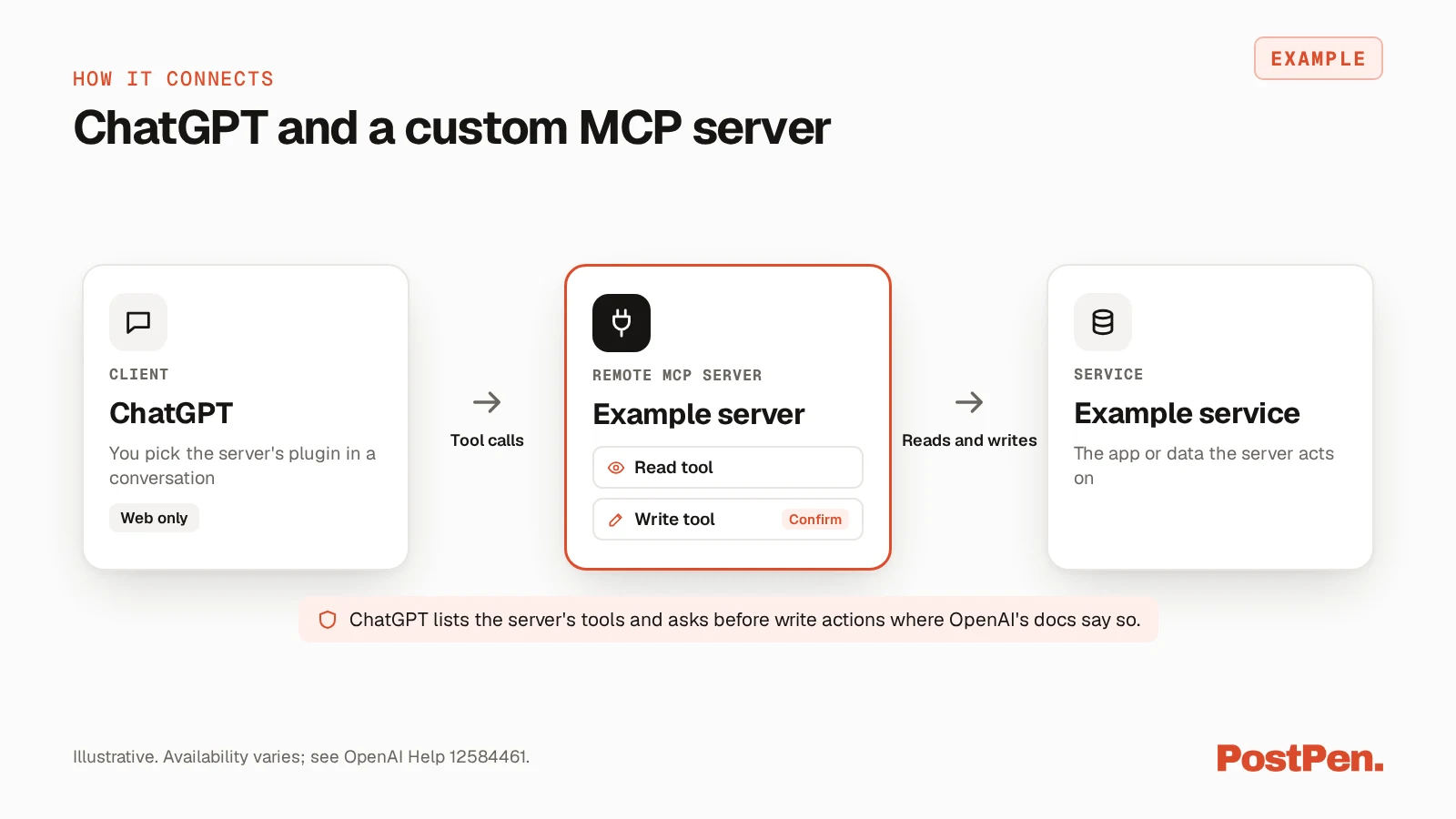
OpenAI's MCP page (learn.chatgpt.com, checked October 23, 2026) says MCP "lets ChatGPT and Codex use tools and information from other systems." An MCP server describes the tools it offers and handles requests for them.
The same page says "ChatGPT web uses remote MCP tools through plugins."
According to OpenAI's developer guide, Add custom MCP server (OpenAI developer docs, checked October 26, 2026), "ChatGPT supports both read and write tools from your server."
ChatGPT connectors, apps and plugins
You'll see three words for related things. OpenAI's Connected apps in ChatGPT (OpenAI Help Center, checked October 23, 2026) defines two of them in its FAQ:
- App: "An app connects ChatGPT to an external service".
- Plugin: "A plugin packages capabilities into a workflow and can include one or more apps, skills, or both."
A custom MCP server you add ends up as a plugin. The word connector still appears in OpenAI's docs, too. An OpenAI help page on plugin and app controls (11509118, checked October 23, 2026) points to a walkthrough "of creating a custom MCP connector".
Before you start
Custom MCP servers work on ChatGPT web only. Asked whether you can connect custom MCP servers on mobile, the FAQ in Connecting custom MCP servers in ChatGPT (12584461, OpenAI Help Center, checked October 26, 2026) says "web only."
As of Oct 26, 2026, the same article also says:
- Business: "Only admins and owners can create and publish plugins for custom MCP servers for a Business workspace." (12584461, checked October 26, 2026)
- Pro: "Pro users can connect custom MCP servers with read/fetch permissions." (12584461, checked October 26, 2026) So on Pro you can connect PostPen, but you can't publish posts through it.
The developer guide adds that "Workspace permissions and security restrictions, including Lockdown, apply to adding and using custom MCP servers."
How to add an MCP server to ChatGPT
First, check that your server is reachable. As of Oct 26, 2026, OpenAI's article Connecting custom MCP servers in ChatGPT asks for a "public HTTPS MCP endpoint URL" (12584461, checked October 26, 2026), or a Secure MCP Tunnel for a server that isn't public.
The custom MCP server guide lists supported protocols as "SSE and streaming HTTP." Authentication options are OAuth, No authentication, and OAuth or no authentication.
Then follow the steps in Connecting custom MCP servers in ChatGPT as of Oct 26, 2026 (12584461, checked October 26, 2026). The article says "You don’t need to turn on Developer Mode first."
- Go to Plugins.
- Select the plus button, then select Add custom MCP server.
- Enter a name and, optionally, a description.
- Under Connection, enter your server’s public HTTPS MCP endpoint URL, or select Tunnel and choose an available Secure MCP Tunnel or enter its tunnel_id. For PostPen, enter
https://mcp.postpen.ai. - Configure authentication for your server.
- Review the risk warning and select the I understand and want to continue checkbox.
- Select Create as a plugin, then review the discovered tools and metadata.
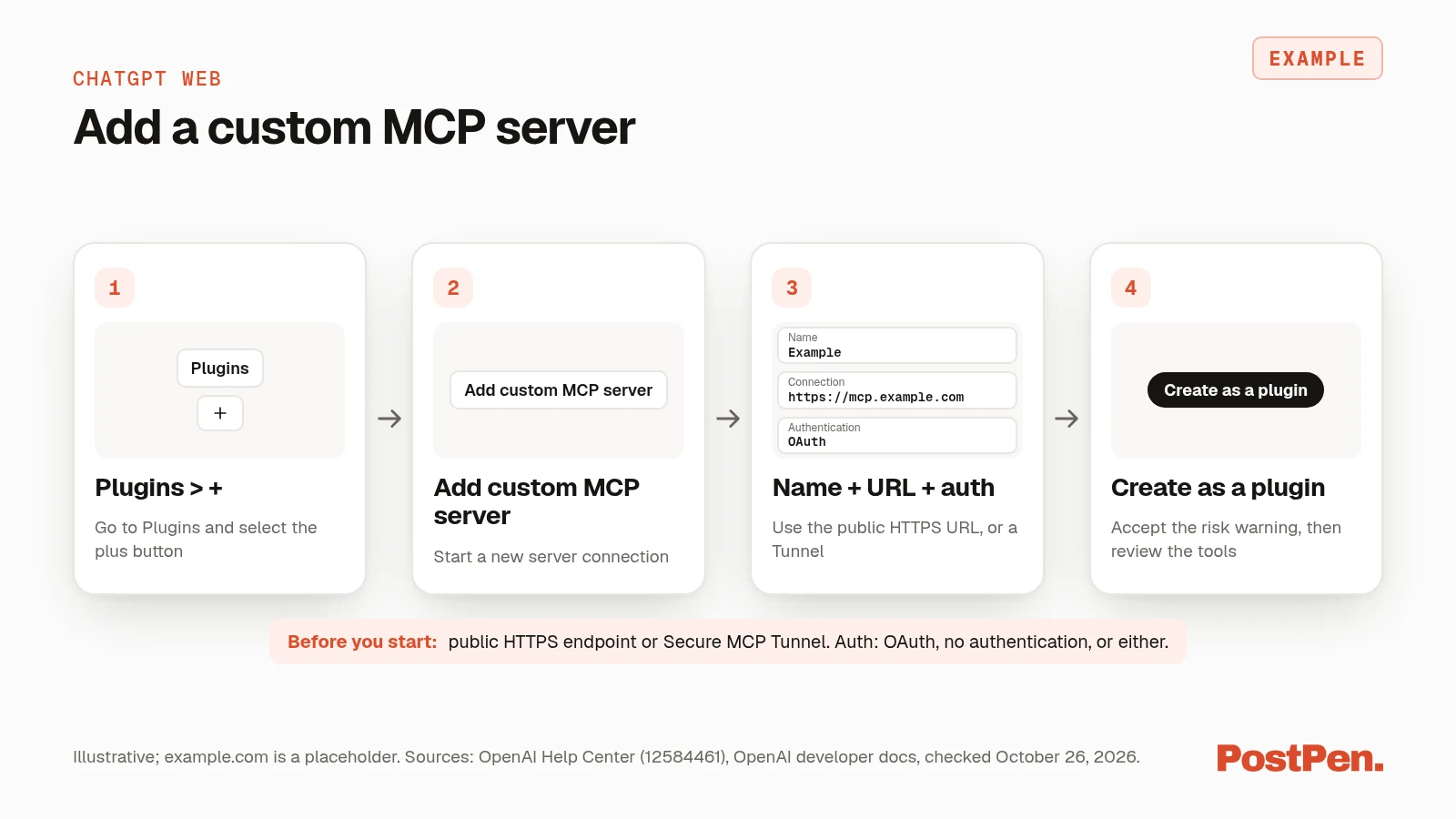
The developer guide says the resulting plugin shows up in your personal plugins or in the workspace where you created it, and you install it before using it.
Local servers need one more step. The 12584461 FAQ says ChatGPT connects to remote MCP servers and points to Secure MCP Tunnel for a server on your own machine. The ChatGPT desktop app is different: it has its own Settings > MCP servers screen, shared with Codex, according to the learn.chatgpt.com MCP page.
Use the server in a chat
Install the plugin and start a new conversation. Type @ in the prompt box and select the plugin, as described in 12584461.
Your selection "applies to the message where you use it, not the entire conversation" (12584461, checked October 26, 2026). To pull new data or take another action later, @mention the plugin again.
The developer guide says "Write actions by default require confirmation." Tools without the readOnlyHint annotation are treated as write actions, and you can expand each tool call to see the full JSON input and output.
You can also remember an approve or deny choice for a tool for the rest of a conversation, and new conversations ask again. The guide says to remember an approval only "if you know and trust the underlying application".
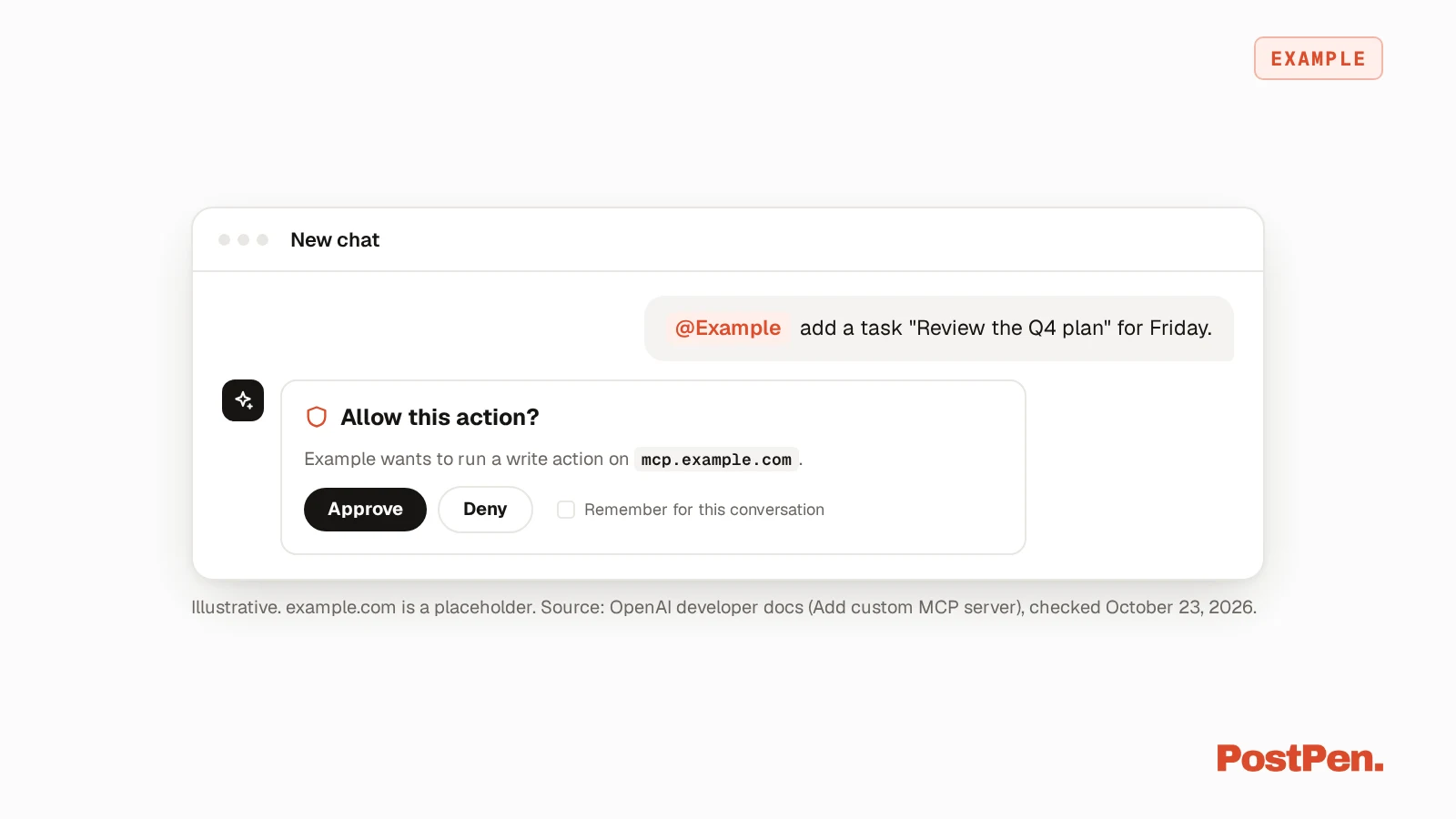
To manage tools, open the plugin's details page in app settings. There you can toggle tools on or off and refresh to pull in new tools and descriptions.
In a workspace: test, publish and refresh
As of Oct 26, 2026, Connecting custom MCP servers in ChatGPT (12584461, OpenAI Help Center, checked October 26, 2026) describes the workspace flow:
- Test first. The article says "only admins/owners can publish custom MCP server connections after testing."
- Frozen snapshot. "After an admin first approves an MCP server connection for the workspace, ChatGPT uses a “frozen” snapshot of its available tools and inputs."
- Refresh. "Business and Enterprise/Edu admins can refresh an existing custom MCP server’s tool list from workspace app settings without recreating the app."
To refresh, the article says "you must have permission to manage the app and a valid connection to it."
Before you connect a server
OpenAI's pages are direct about the risks. Check these points before you add any server:
- Connect only servers you trust. The developer guide warns that an untrusted server "may access or steal information shared through app use, or trick ChatGPT into using tools in unintended ways, including changing or deleting data."
- Prompt injection is a real risk. 12584461 says untrusted servers "may increase exposure to security risks (including prompt injection)."
- Custom apps aren't verified by OpenAI. 11509118 says "Custom apps are not verified by OpenAI and are intended for developer use only."
- Read every write confirmation. The developer guide warns that incorrect write actions "can inadvertently destroy, alter, or share data".
All quotes on this list were checked October 26, 2026.
Example: a posting server
For example, PostPen runs a remote MCP server at https://mcp.postpen.ai for scheduling and publishing LinkedIn posts: your MCP client opens a browser, you sign in to PostPen and click Allow, and from then on your agent writes while PostPen schedules and publishes. For the full steps, see the setup guide for your agent, and for the tool list, see PostPen's agent tools.
FAQ
Yes, on ChatGPT web. OpenAI's help article on connecting custom MCP servers in ChatGPT says "Connect custom MCP servers to ChatGPT to use their tools in conversations."
Go to Plugins, select the plus button, then Add custom MCP server. Enter a name and the server's URL, configure authentication, accept the risk warning and select Create as a plugin.
As of Oct 26, 2026, OpenAI's help article on connecting custom MCP servers in ChatGPT says: "Full MCP is only available to Business and Enterprise/Edu users, currently." Check the article for your plan before you start.
OpenAI's current help pages call connected services apps, and one still refers to a custom MCP connector. A plugin can package one or more apps, and a custom MCP server you add becomes a plugin.
Not directly. ChatGPT connects to remote MCP servers, so a server on a private network or your computer needs Secure MCP Tunnel.
Connect a server you trust
ChatGPT MCP comes down to a few steps: add the server as a plugin, install it, and call it with @. Check OpenAI's help article for current availability, connect only servers you trust, and read each write confirmation.
Start free to give your agent a way to publish.