
Codex MCP: add MCP servers to the Codex CLI
By PostPen Team ·
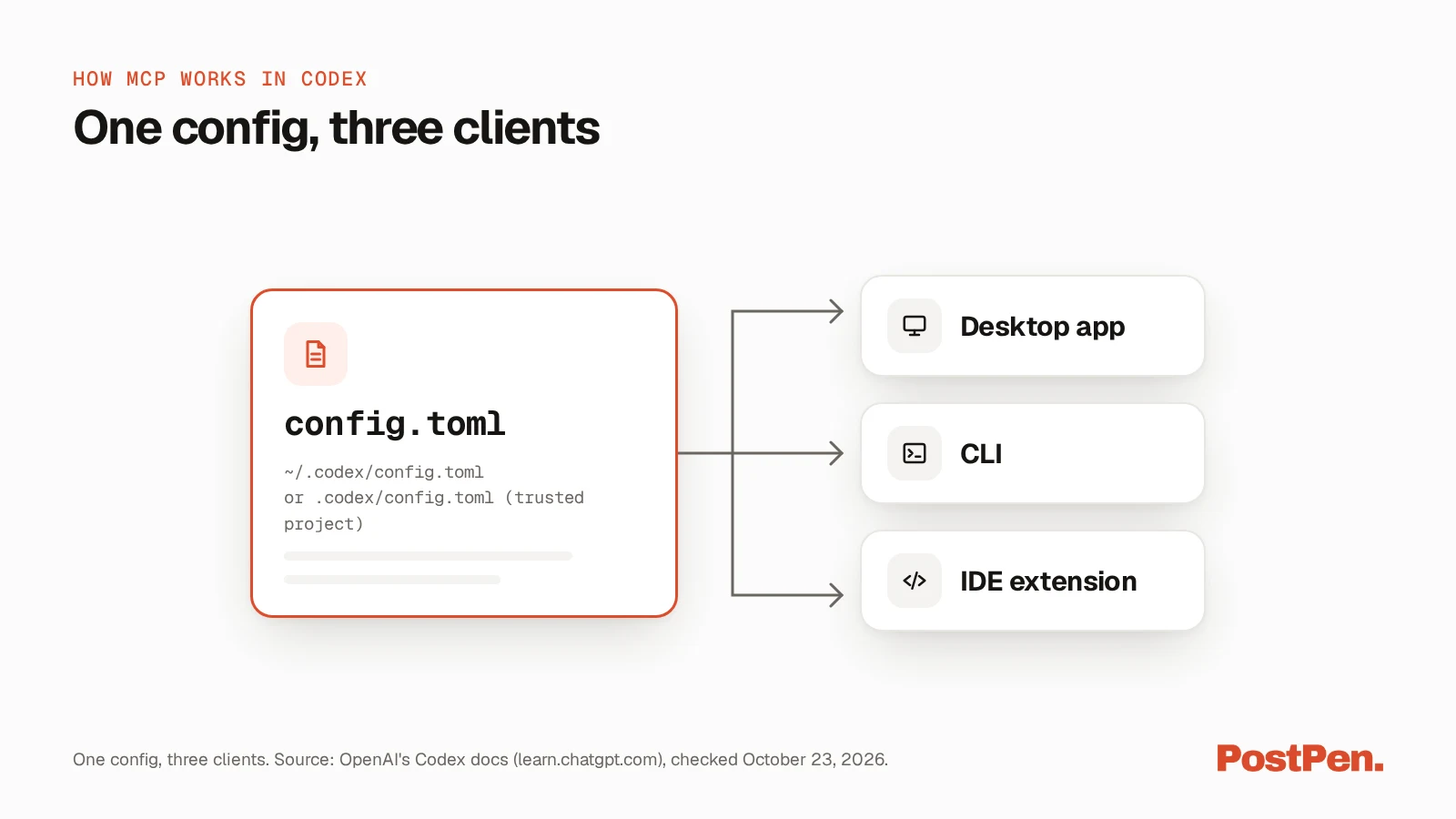
Codex connects to MCP servers that you list in its config.toml file, ~/.codex/config.toml by default. The most direct way to add one is the Codex CLI: run codex mcp add with a server name and either the command that starts a local server or --url for a remote one, then codex mcp login if the server uses OAuth. The ChatGPT desktop app, the Codex CLI and the IDE extension share this configuration, so you set a server up once.
Every Codex MCP command and option in this guide comes from OpenAI's Codex docs on learn.chatgpt.com, checked October 23, 2026. The docs change often, so check the linked pages before you copy anything.
Your agent writes, PostPen schedules and publishes.
How MCP works in Codex
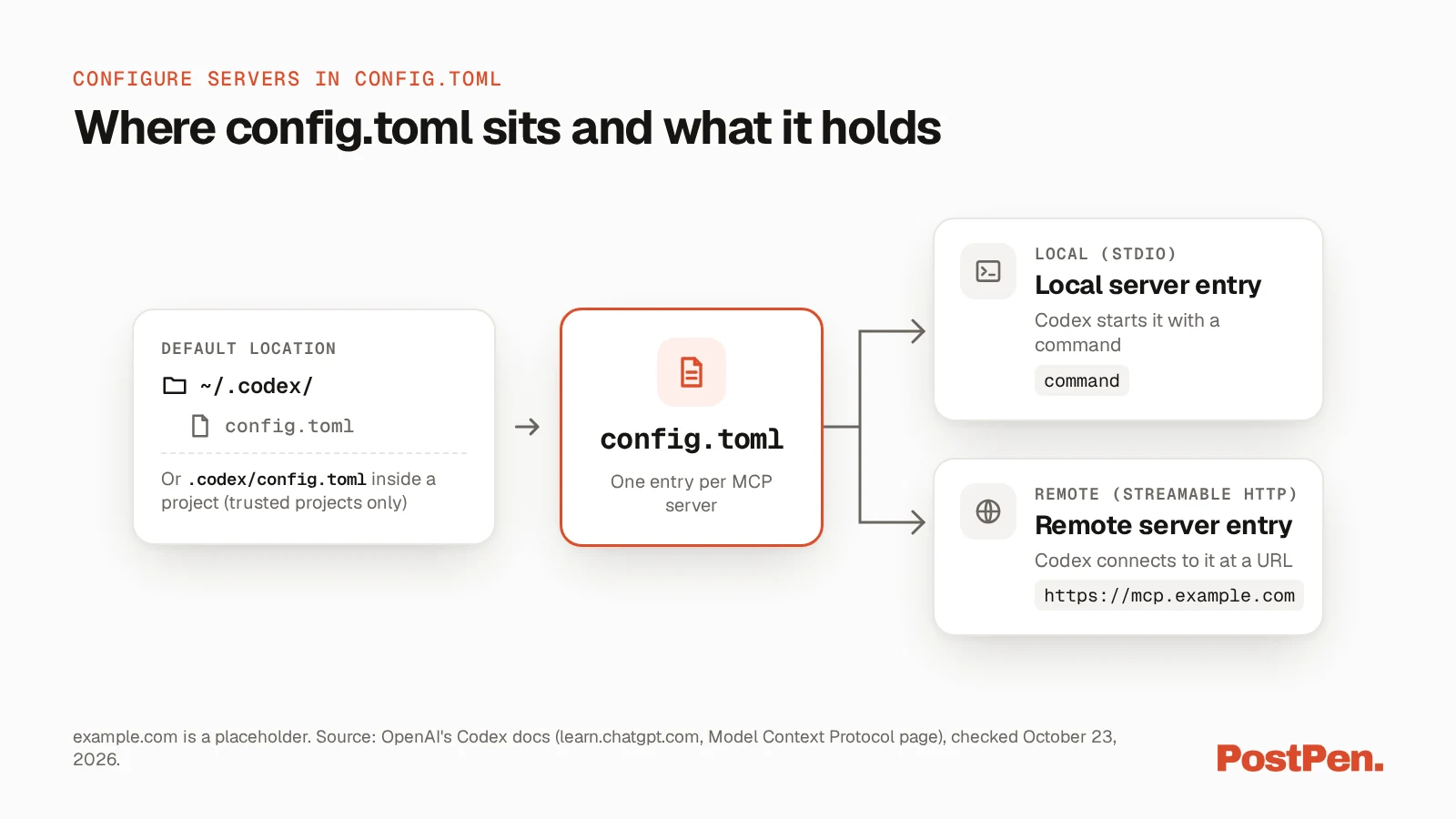
OpenAI's Model Context Protocol page (OpenAI's Codex docs, checked October 23, 2026) puts it in one line: "Model Context Protocol (MCP) lets ChatGPT and Codex use tools and information from other systems." Codex supports two kinds of server: STDIO servers that it starts as a local process, and Streamable HTTP servers that it connects to at a URL.
The same page says "Codex stores MCP configuration in config.toml alongside other Codex configuration settings." That file is ~/.codex/config.toml by default, or .codex/config.toml inside a project, which works for trusted projects only. The desktop app, the CLI and the IDE extension all read it.
Check OpenAI's Codex docs for current availability. To set up the CLI itself, start from the Codex CLI page.
Add an MCP server with the Codex CLI
The codex mcp command manages your server list. The CLI reference (OpenAI's Codex docs, checked October 23, 2026) describes it as a way to "Manage Model Context Protocol server entries stored in ~/.codex/config.toml."
A local (STDIO) server
The MCP page gives this syntax for a local server:
codex mcp add <server-name> --env VAR1=VALUE1 --env VAR2=VALUE2 -- <stdio server-command>
Each --env flag sets one environment variable for the server, and you can repeat it. Everything after the -- separator is the command Codex runs to start the server.
A made-up example with no variables looks like this:
codex mcp add docs-server -- {command that starts the server}
A remote (Streamable HTTP) server
For a server at an address, pass --url instead of a command. The CLI reference lists add <name> with either a command or --url, so a remote server looks like this:
codex mcp add example --url https://mcp.example.com
The reference says --url is "Mutually exclusive with COMMAND...", so you can't combine it with a start command. If the server expects a bearer token, add --bearer-token-env-var with the name of the environment variable that holds it:
codex mcp add example --url https://mcp.example.com --bearer-token-env-var {ENV_VAR}
Sign in to an OAuth server
If a remote server uses OAuth, sign in after you add it:
codex mcp login example
The CLI reference notes that "OAuth actions (login, logout) only work with streamable HTTP servers (and only when the server supports OAuth)." If you're already in a Codex session, the same page says you can use /mcp login with the server name "to sign in to a configured MCP server from the active session."
To ask for specific scopes for one login, the MCP page shows this form:
codex mcp login <name> --scopes read,write
Codex also supports OAuth with Client ID Metadata Documents and Dynamic Client Registration, according to the MCP page.
Servers that need a pre-registered client
Some authorization servers need a client you registered ahead of time. The MCP page gives this command:
codex mcp add example --url https://mcp.example.com --oauth-client-id my-client
For a client that also has a secret, it adds the secret from an environment variable:
codex mcp add example --url https://mcp.example.com --oauth-client-id my-client --oauth-client-secret "$MCP_CLIENT_SECRET"
Codex then prints the callback URL to register with your provider, in a line like OAuth callback URL: http://127.0.0.1/callback. The docs say to "register the exact callback displayed by codex mcp add." They also warn that the secret is stored in config.toml: "Keep that file private and out of version control."
Configure servers in config.toml
You can also edit the file directly. Each server gets its own [mcp_servers.<server-name>] table, as the MCP page describes, and this example has one of each type:
[mcp_servers.docs-server]
command = "{command}"
args = ["{arg}"]
env = { "{VAR}" = "{value}" }

[mcp_servers.example]
url = "https://mcp.example.com"
bearer_token_env_var = "{ENV_VAR}"
These are the main options, from the MCP page (checked October 23, 2026):
| Option | Applies to | What it does |
|---|---|---|
command | STDIO | The command that starts the server (required) |
args | STDIO | Arguments to pass to the server |
env | STDIO | Environment variables to set for the server |
env_vars | STDIO | Environment variables to allow and forward |
cwd | STDIO | Working directory to start the server from |
url | Streamable HTTP | The server address (required) |
auth | Streamable HTTP | Authentication to try after bearer tokens and headers; oauth is the default |
bearer_token_env_var | Streamable HTTP | Name of the environment variable that holds a bearer token |
http_headers | Streamable HTTP | Map of header names to static values |
env_http_headers | Streamable HTTP | Map of header names to environment variable names |
startup_timeout_sec | Both | Seconds to wait for the server to start; default 10 |
tool_timeout_sec | Both | Seconds to wait for a tool to run; default 60 |
enabled | Both | Set to false to turn a server off without deleting it |
required | Both | Set to true to make startup fail if the server can't initialize |
The page also says "If no credential source resolves, Codex can connect to the server without authentication." So for an OAuth server, run codex mcp login to sign in. The configuration reference (checked October 23, 2026) has the full list of MCP options.
Control which tools Codex can use
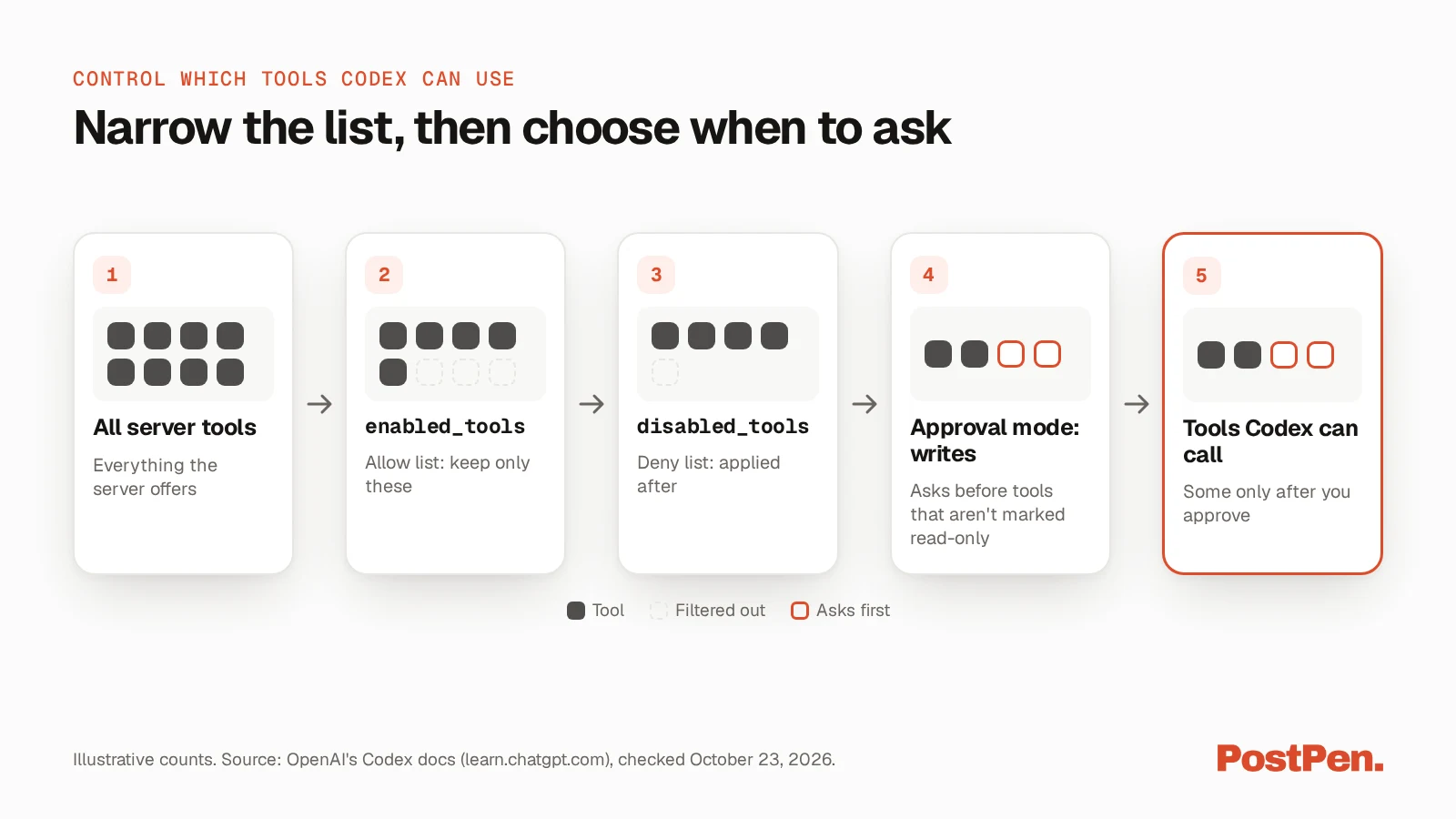
Two options limit which of a server's tools Codex sees. enabled_tools is an allow list, and disabled_tools is a deny list that the MCP page says is "applied after enabled_tools."
You can also set how Codex asks before it calls a tool. default_tools_approval_mode accepts auto, prompt, writes and approve, and the docs explain one of them: "The writes mode prompts for tools that aren't marked read-only." To change the setting for one tool, use tools.<tool>.approval_mode.
[mcp_servers.example]
url = "https://mcp.example.com"
enabled_tools = ["{tool_a}", "{tool_b}"]
default_tools_approval_mode = "writes"
Check, disable and remove servers
These commands come from the CLI reference and the MCP page (checked October 23, 2026):
codex mcp list
codex mcp list --json
codex mcp get example
codex mcp remove example
codex mcp logout example
codex mcp list shows your configured servers, and codex mcp get prints one server's entry, with --json for raw output. codex mcp remove deletes a server's definition, and codex mcp logout removes its stored OAuth credentials. Run codex mcp --help to see every MCP command.
Inside the Codex terminal UI, type /mcp to see your active servers. The CLI reference adds: "Use /mcp verbose to include detailed server diagnostics."
To pause a server without losing its settings, set enabled = false in its table. Set it back to true when you need it again.
Use the same servers in the IDE extension and desktop app
OpenAI's docs say "The ChatGPT desktop app, Codex CLI, and IDE extension share this configuration," so servers you add in the CLI show up there too. In the IDE extension, open the gear menu and select MCP servers, where you can add a STDIO or Streamable HTTP server, restart the extension, and select Authenticate for OAuth servers. The desktop app has the same list under Settings, then MCP servers.
For ChatGPT itself, see our ChatGPT MCP guide.
Keep your setup safe
These points all come from the MCP page (checked October 23, 2026):
- Keep
config.tomlprivate. If it holds a client secret, keep it out of version control. - Use environment variables for tokens.
bearer_token_env_varnames the environment variable that holds the token, andenv_http_headersmaps header names to environment variables, so the file holds variable names, not token values. - Limit what runs without asking. Use
enabled_tools,disabled_toolsand an approval mode such aswrites. - Know where project config loads. A project-scoped
.codex/config.tomlis for trusted projects only.
Example: a posting server
For example, PostPen runs a remote MCP server for LinkedIn posting. You add it to Codex as a Streamable HTTP server, Codex opens a browser, you sign in to PostPen and click Allow, and then your agent writes while PostPen schedules and publishes. See the setup guide for your agent, or browse other MCP servers built for social media.
FAQ
In config.toml, which is ~/.codex/config.toml by default. You can also add servers to .codex/config.toml inside a trusted project.
Run codex mcp add with a name and either the command that starts a local server or --url for a remote one. Then run codex mcp list to check it's there.
Yes. Codex supports Streamable HTTP servers at a URL, with bearer token or OAuth sign-in, as well as local STDIO servers.
Run codex mcp login with the server's name. Login only works with Streamable HTTP servers that support OAuth.
Yes. OpenAI's docs say the desktop app, Codex CLI and IDE extension share MCP configuration, so you can switch between them without setting servers up again.
Connect your servers once
Add a server with codex mcp add, sign in with codex mcp login if it uses OAuth, and set an approval mode before you let it run. Every Codex client that shares the configuration then has it ready.
Your agent writes, PostPen schedules and publishes.