
How to edit a post on LinkedIn or delete it
By PostPen Team ·
To edit a LinkedIn post, click the More icon on the post, choose Edit post, change the text and click Save. LinkedIn marks the post "Edited".
You can only edit the text: to change a photo, video or document, delete the post and create a new one. To delete a post, click More, then Delete post, and confirm.
Start free to let your agent post to LinkedIn through PostPen. Your agent writes the post, and PostPen schedules and publishes it.
How to edit a LinkedIn post (desktop and mobile)
Edit a shared post (LinkedIn Help, checked October 16, 2026) says you can edit the text in posts you've shared from your homepage, a Group or a LinkedIn Page.
- Find the post you want to edit.
- Click the More icon in the upper-right corner of the post.
- Click Edit post.
- Edit the text of your post.
- Click Save.
On mobile, tap the More icon, tap Edit post, edit your post and tap Save.
After you save, the word "Edited" appears next to your post (a522811, checked October 16, 2026). LinkedIn Help doesn't say editing changes how a post is shown.
What you can't change after posting
LinkedIn Help is direct: "Only the text in a post can be edited" (a522811, checked October 16, 2026).
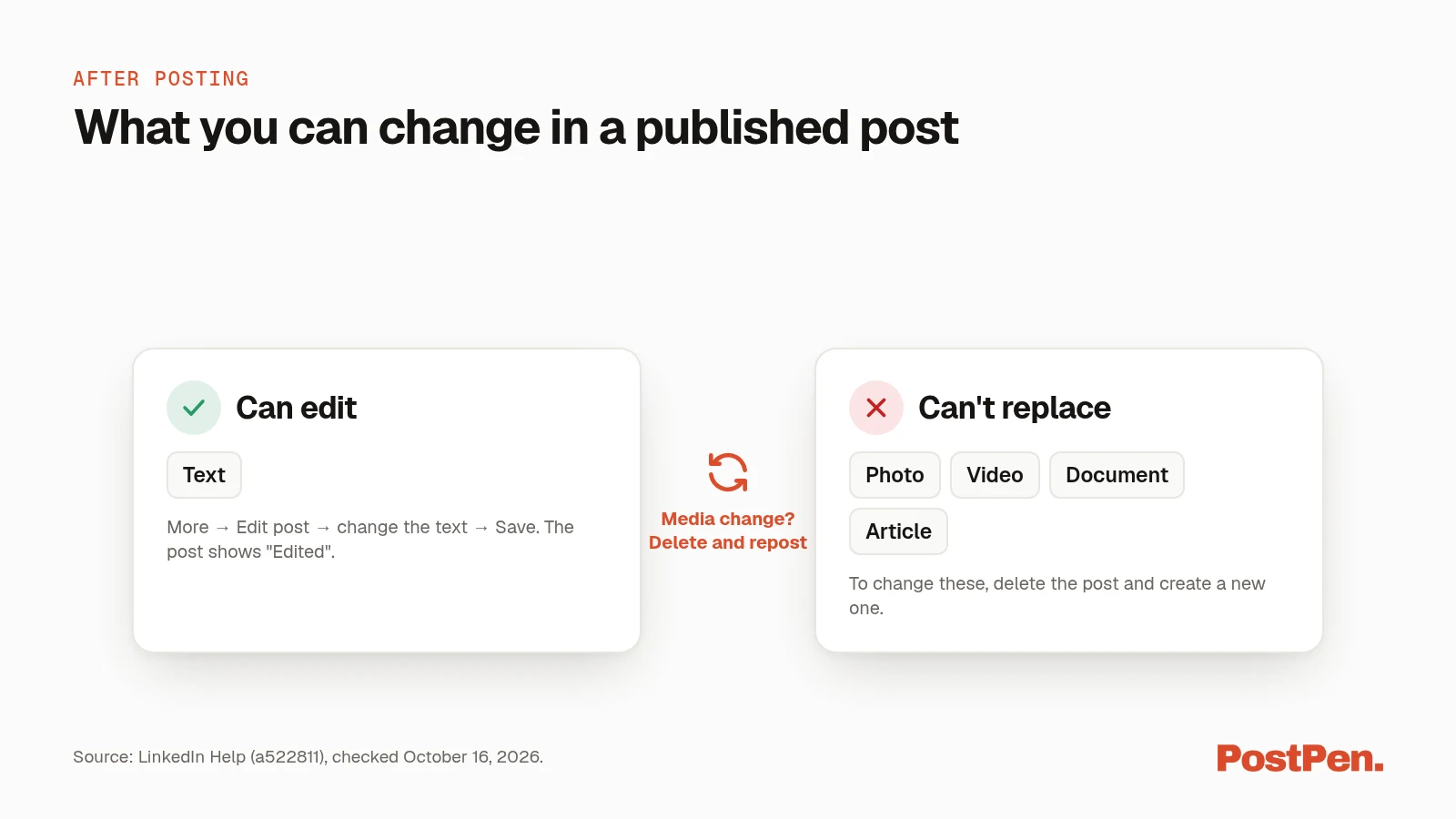
- Media can't be replaced. To change a photo, article, document or video, delete your post and create a new one. That includes a document, such as a PDF carousel.
- Link previews don't refresh. A new URL won't display a new preview image. The share box also remembers your last link for three days, so wait that long before resharing a URL whose image and title you want updated.
- Mentions can be added. Forgot a tag? Edit the post to add it (a525082, checked October 16, 2026). See how to tag someone on LinkedIn.
How to delete a LinkedIn post
To delete from your feed, follow Delete content you've shared (LinkedIn Help, checked October 16, 2026).
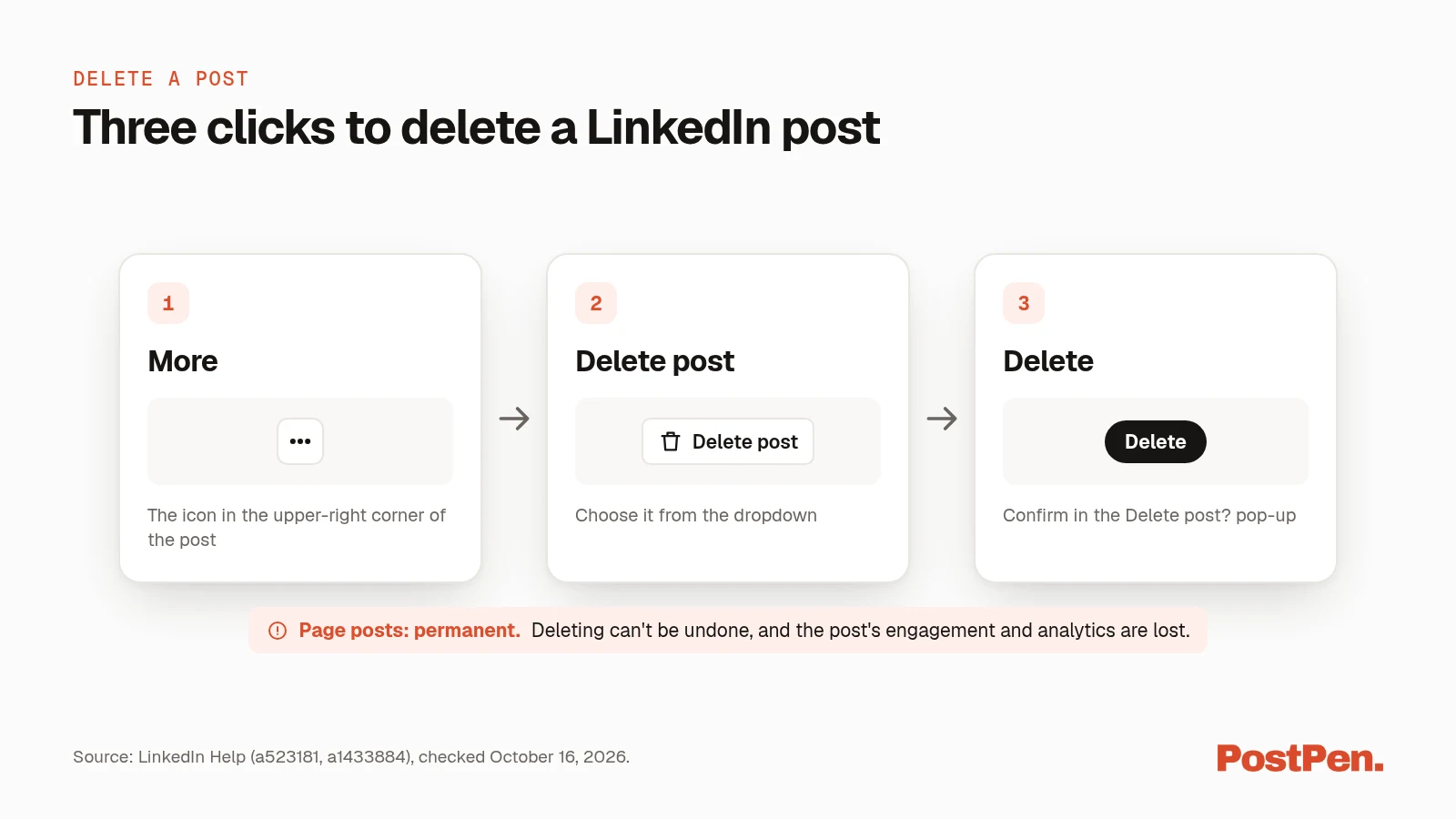
- Find the post you want to delete.
- Click or tap the More icon in the upper-right corner of the post.
- Choose Delete post.
- Click or tap Delete to confirm.
Delete an older post from your Activity page
Manage shared content and profile activity (LinkedIn Help, checked October 16, 2026) says: "You can view and delete content up to two years old from your profile Activity page."
- Click the Me icon at the top of your homepage, then View profile.
- In the Activity section, open the Posts tab and click the post.
- Click More, then Delete post, then Delete to confirm.
Two things to know before you delete
- Spam-marked content stays. LinkedIn says you can't delete content that has been marked as spam (a523181, checked October 16, 2026).
- Digest emails can lag. LinkedIn notes that "If some time has passed after you've deleted a post, it could still appear in a digest email sent to your connections" (a523181, checked October 16, 2026).
Edit or delete a LinkedIn Page post
You need to be a super admin or content admin of the Page. Edit a post on your LinkedIn Page (LinkedIn Help, checked October 16, 2026) gives these steps:
- Open your Page's super or content admin view.
- Click Page posts in the left menu. On mobile, tap Dashboard, then Page posts.
- Find the post, click the More icon and select Edit post.
- Edit the post and click Save.
You can only edit a sponsored post if your Page has at least 500 followers or 50 members associated with it (a548231, checked October 16, 2026).
To delete, Delete a post on your LinkedIn Page (LinkedIn Help, checked October 16, 2026) uses the same path: Page posts, More, Delete post, then Delete to confirm. It covers your posts, reposts and posts imported from sources such as your blog. LinkedIn lists what happens next:
- It can't be undone. The post is permanently removed from your Page, though someone with the direct URL might still see it elsewhere on LinkedIn.
- Engagement is lost. Likes, comments and shares on the post are removed.
- Analytics go too. Views, clicks and engagement rates for that post are no longer available.
Delete a LinkedIn article
Articles live in LinkedIn's publishing tool, not the post menu (a1342513, checked October 16, 2026).
- Click Write article in the share box near the top of your LinkedIn homepage.
- Open the Manage dropdown in the upper right of the publishing tool and select Published.
- In the Articles window, find the article you want to remove.
- Click the Delete icon next to it and confirm Delete.
Not posted yet?
If the post is still scheduled, see how to change a scheduled post. If it's a draft, see how to edit or delete LinkedIn drafts.
Posts your AI agent publishes through PostPen
With PostPen, the line that matters is the moment a post goes out.
Before it goes out:
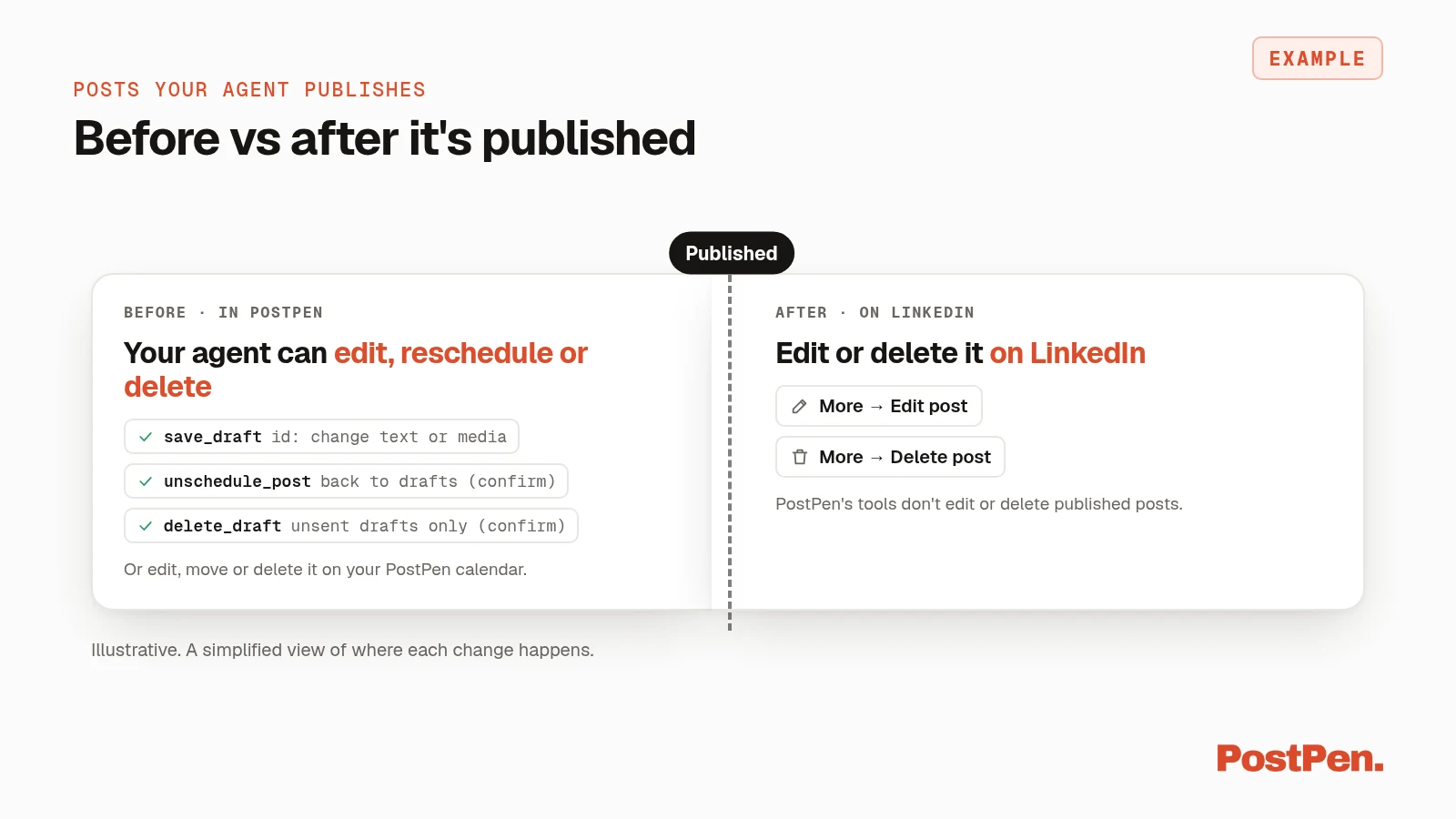
- Drafts: your agent can change the text or media of a draft, or delete it. Deleting needs your confirmation, and only unsent drafts can be deleted.
- Scheduled posts: your agent can change the text or media of a scheduled post that hasn't been sent, and the time stays the same. To reschedule it, your agent first moves it back to drafts, then schedules it again for the new time.
- Removing a scheduled post: your agent moves it back to drafts first, then deletes it as a draft, which needs your confirmation.
- On the calendar: you can also edit, move or delete anything in PostPen before it goes out.
After it's published: PostPen's tools don't edit or delete published posts. Make changes on LinkedIn with the steps above.
For example:
Before Thursday's post goes out, fix the typo in line 2 and keep the same time.
Your agent writes the post, and PostPen schedules and publishes it. See the full list of PostPen's agent tools.
FAQ
Yes. Click More on the post, choose Edit post, change the text and click Save. LinkedIn shows "Edited" next to the post.
No. Only the text can be edited. To change a photo, video, document or article, delete the post and create a new one.
Go to your profile's Activity section, open Posts, click More on the post, choose Delete post and confirm. LinkedIn lets you view and delete content up to two years old there.
No. LinkedIn says deleting a Page post is permanent, and its likes, comments, shares and analytics are lost.
Not through PostPen. Your agent can edit, reschedule or delete a post before it goes out; after it's published, edit or delete it on LinkedIn.
Fix it before it ships, or fix it on LinkedIn
Text edits take a few clicks. Media changes mean a new post, and Page deletes are permanent, so check before you click Delete.
Start free. Your agent writes the post, and PostPen schedules and publishes it.