
How to add a link to a LinkedIn post
By PostPen Team ·
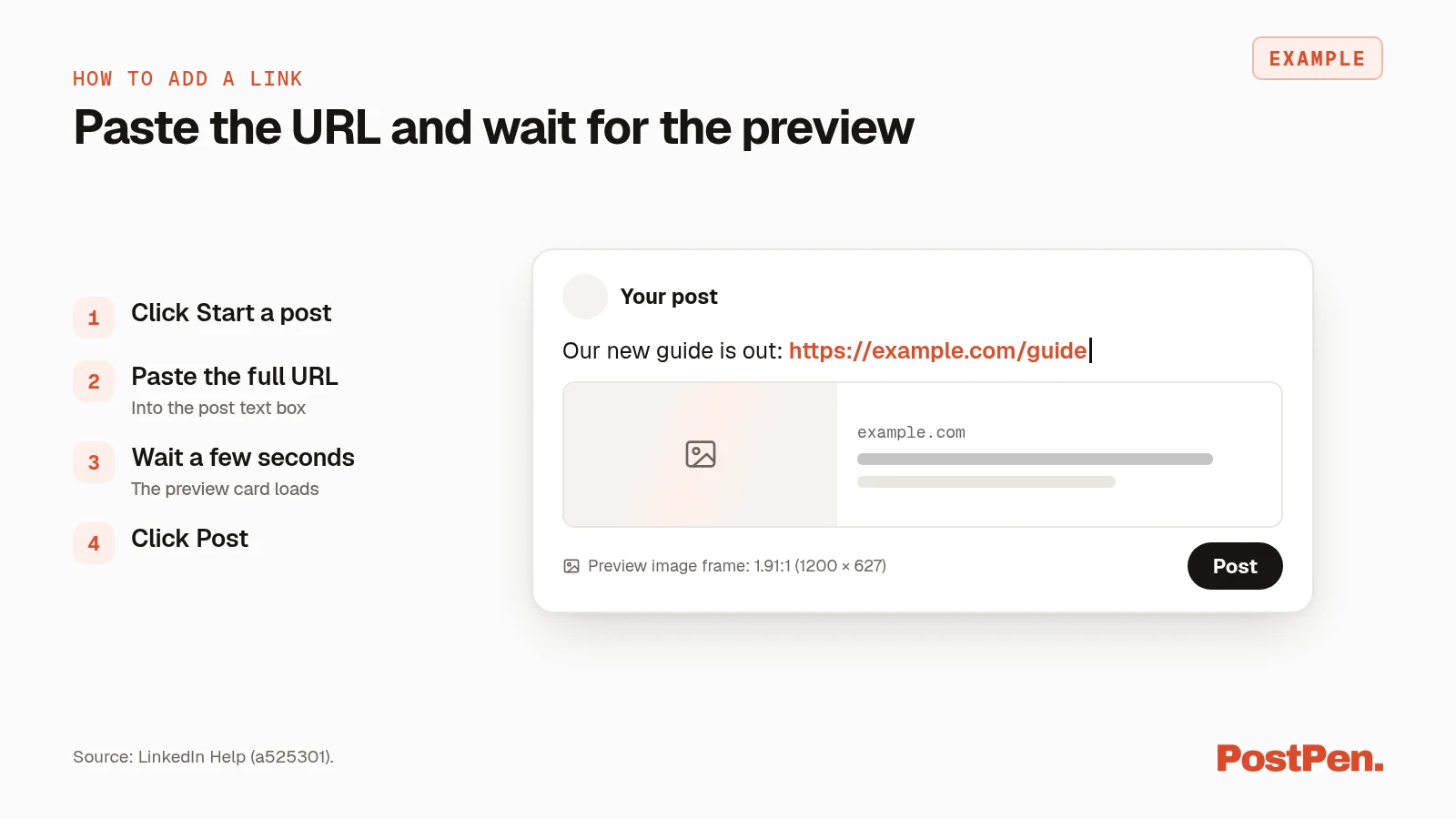
To add a link to a LinkedIn post, click Start a post, paste the full URL into the text box, wait a few seconds for the preview, and click Post. LinkedIn shortens links longer than 26 characters once you post. If you'd rather keep the post text clean, add the link in a comment instead.
This guide covers how to add a link to a LinkedIn post on desktop and mobile, whether you can hyperlink text, and how to fix a missing preview. It also shows how your AI agent can add the link for you.
Start free to let your agent schedule posts with links. Your agent writes the post, and PostPen schedules and publishes it.
How to add a link on desktop
These steps come from Share articles or links (LinkedIn Help, checked October 16, 2026):
- Click Start a post at the top of your LinkedIn homepage.
- Paste the link or type the URL in the What do you want to talk about? field.
- Allow a few seconds for a preview image to display. The image frame is 1.91:1, or 1200 × 627 pixels.
- Add text to your post if you want, up to 3,000 characters (see LinkedIn character limits).
- Click the dropdown next to your name, choose who you want to share the post with in Post settings, and click Done.
- Click Post.
If LinkedIn can't retrieve a preview image, "you can still share your update as a link."
On mobile
The mobile steps, from the same LinkedIn Help page (a525301, checked October 16, 2026):
- Tap Post in the navigation bar.
- Paste the link or type the URL in the Share your thoughts field.
- Allow a few seconds for a preview image to display.
- Tap the Anyone dropdown below your name and select who you want to share the post with.
- Tap Post on the upper right.
Can you hyperlink text in a LinkedIn post?
LinkedIn Help describes adding links to posts by pasting the URL; the hyperlink button it describes is in the article editor. In a post, the URL itself is the link.
Short URLs in shared posts (LinkedIn Help, checked October 16, 2026) explains what happens next. When a link is longer than 26 characters, LinkedIn shortens it "once you click Post, to make it easier to read." You can add text before or after the URL, but if you share an article with no text after the link, the URL is hidden from the share.
Articles are different. Write and publish articles on LinkedIn (LinkedIn Help, checked October 16, 2026) says to "Click Link to add hyperlinks throughout your article." You start an article with Write article in the share box (a518996, checked October 16, 2026), and the article editor isn't available in the LinkedIn mobile app.
Why your link preview isn't showing
These are the causes and fixes LinkedIn Help lists (all checked October 16, 2026):
- The site lacks preview tags. LinkedIn relies on oEmbed or Open Graph tags to pull the title, description and image. Without them, "content may not be pulled or other content from the site may be displayed" (a525063).
- The URL has spaces. URLs with spaces "can't be shared on LinkedIn and will result in an error" (a525063).
- LinkedIn shows a cached version. If you've shared the URL before, the preview may show an old image. Post Inspector refreshes it, but the change only affects new posts. Existing posts keep their old preview.
- The share image breaks the rules. For site owners,
og:imageneeds a minimum of 1200 × 627 pixels, a 1.91:1 ratio and a 5 MB max (a521928). - You added a photo. "You can share either a URL link or an image in a post, but not both at the same time" (a527229).
If the preview still won't load, you can post the link without one (a525301). If you post as a LinkedIn Page, super and content admins can also change the preview image and title before posting (a566445).
Adding a link in a comment
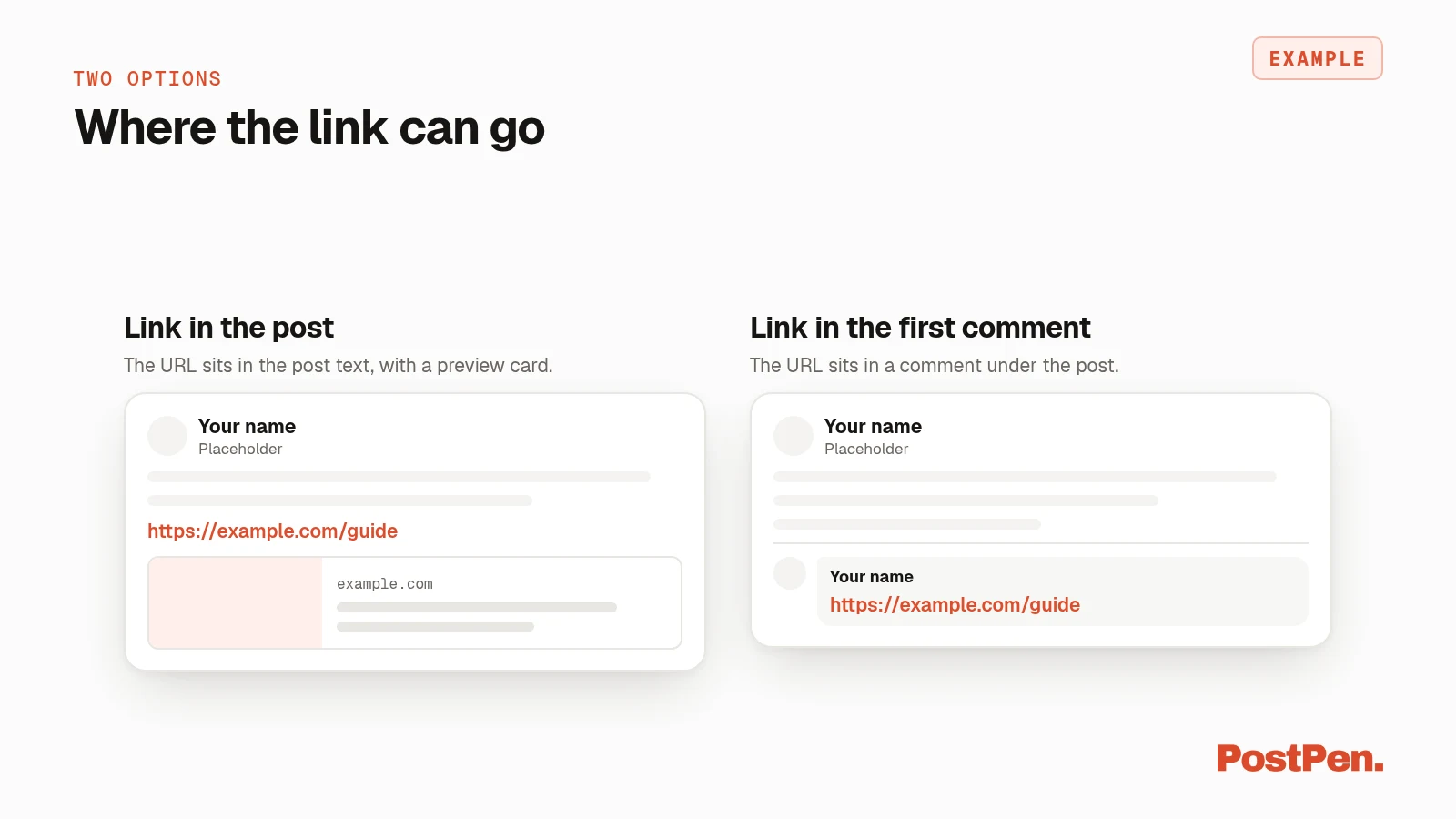
Putting the link in a comment is a choice, not a rule. It suits you if you'd rather keep the post text clean.
If you post through PostPen, this is built in. The first_comment field is an "optional comment PostPen adds to the post right after it is published, for example a link" (PostPen API spec, openapi.json).
Links when your AI agent posts
When your agent posts through PostPen, it has two places for a link:
- In the post text. The agent puts the URL in the post content with
save_draft, the same way you'd paste it. - In the first comment. The agent sets
first_comment, up to 1,250 characters. PostPen stores it on the post and adds it right after the post is published byschedule_postorpublish_now.
After the post goes out, get_post_stats reports clicks for company page posts only. Personal posts get no click count.
You can ask in plain words:
Write a 3-line post about my new guide, put the link https://example.com/guide in the first comment, and schedule it for Tuesday 9:00.
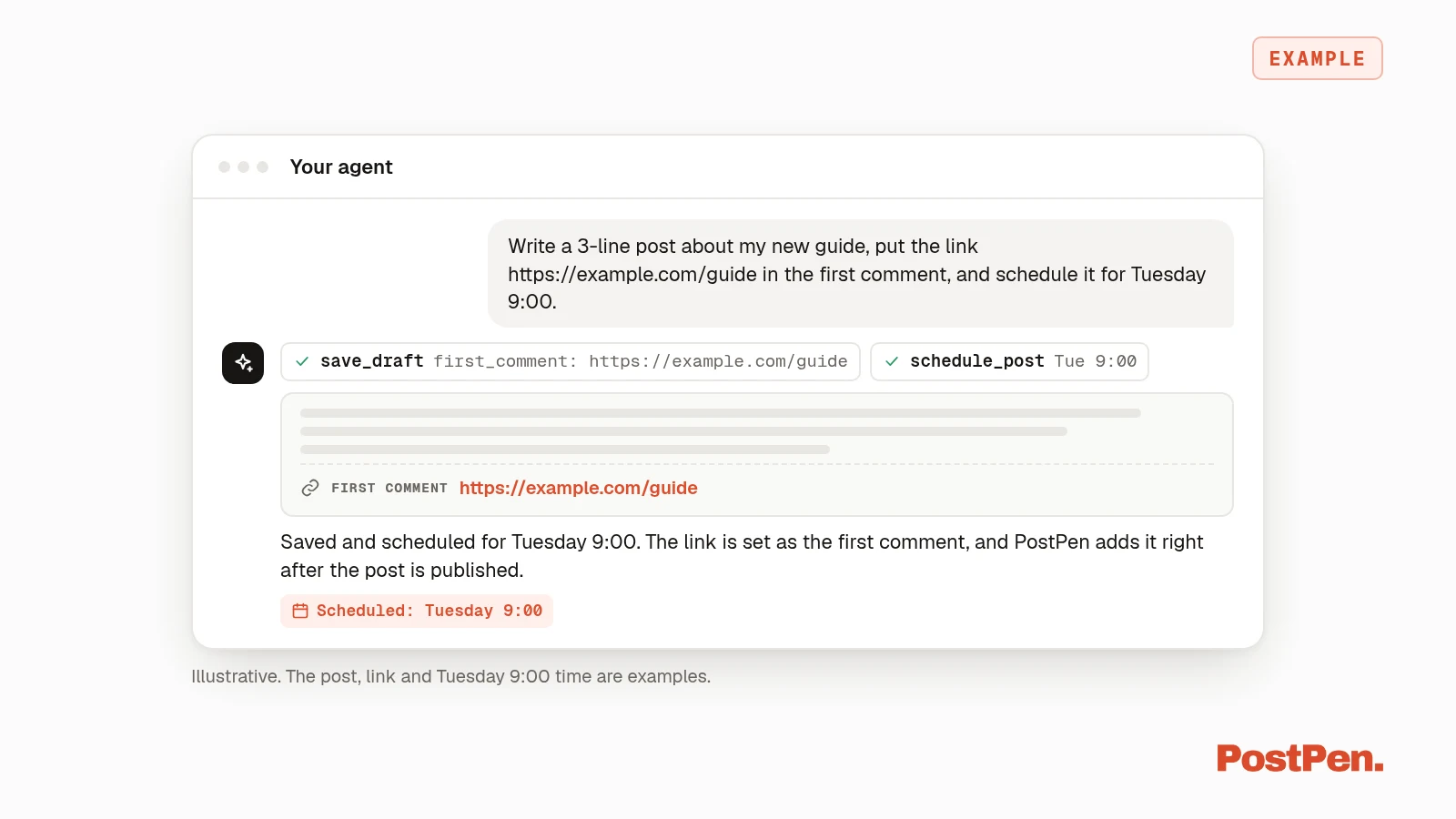
Your agent writes the post, and PostPen schedules and publishes it with the comment. For the writing itself, see how to write LinkedIn posts with your AI agent. The full list of PostPen's agent tools is here, and if you haven't set up yet, connect your agent through PostPen first.
FAQ
Click Start a post, paste the full URL into the text box, wait for the preview, then click Post.
LinkedIn Help describes adding links to posts by pasting the URL. The hyperlink button it describes is in the article editor, not the post box.
LinkedIn automatically shortens links longer than 26 characters after you click Post, to make them easier to read.
The site may be missing Open Graph tags, or LinkedIn may be showing a cached version. Post Inspector refreshes the preview for new posts. You can also post the link without a preview.
Yes. Through PostPen, your agent sets a first comment of up to 1,250 characters, and PostPen adds it right after the post is published.
Share your next link from your agent
Paste the URL, wait for the preview, and post. If the preview is wrong, check the site's tags or refresh it with Post Inspector.
Start free. Your agent writes the post, and PostPen schedules and publishes it.