
LinkedIn post drafts: how to save, find and finish them
By PostPen Team ·
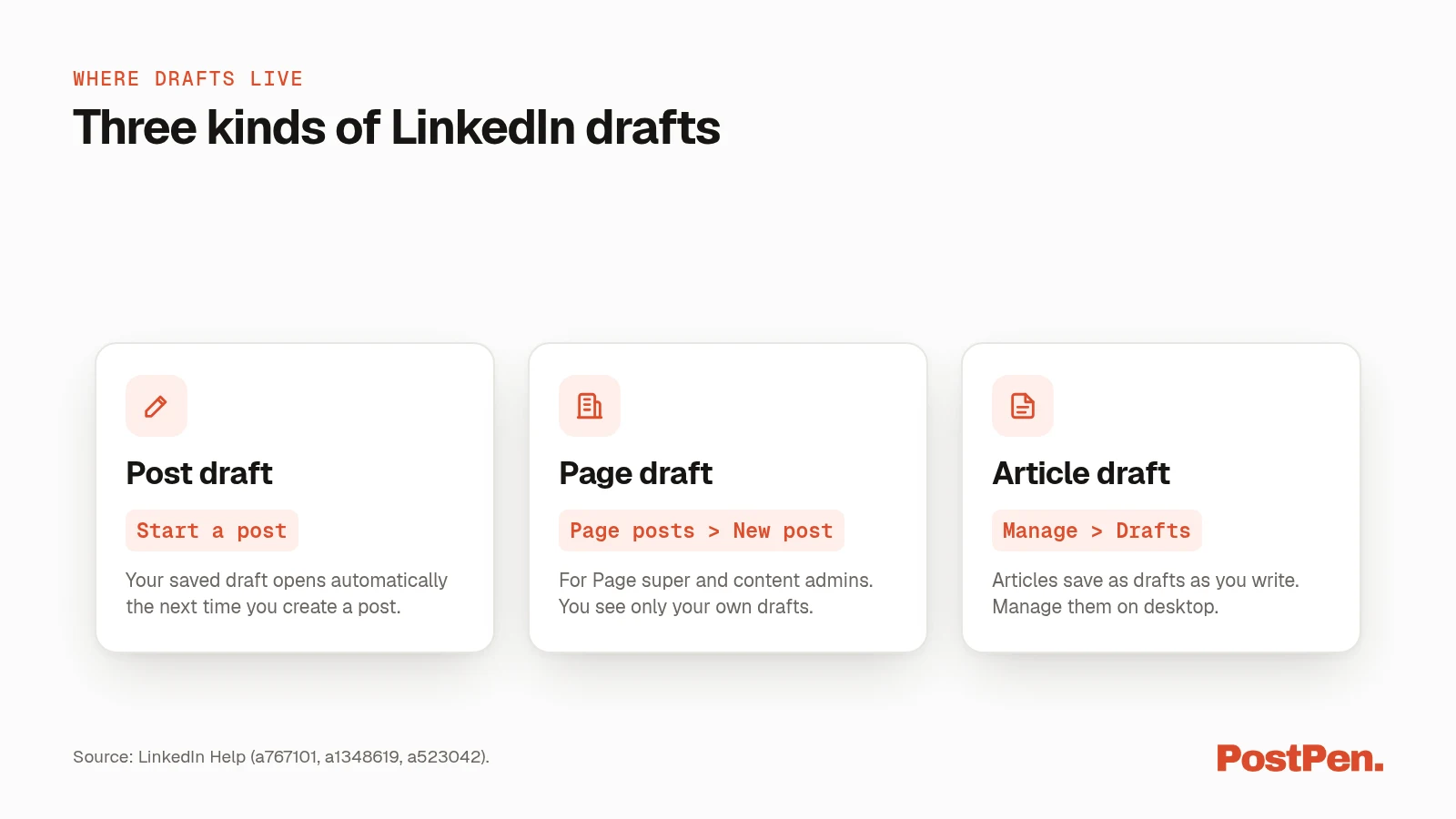
To save a LinkedIn post as a draft, click Cancel while writing it and choose Save as draft. Your draft opens automatically the next time you click Start a post, and drafts sync across your devices, per LinkedIn Help. Page admins save Page drafts from the Page's admin view, and article drafts are under Manage > Drafts in LinkedIn's article publishing tool.
This guide covers all three kinds of LinkedIn post drafts: your own posts, Page posts and articles. It also explains where drafts your AI agent saves end up.
Start free to let your agent save drafts you can review before anything goes out. Your agent writes the post, and PostPen schedules and publishes it.
How to save a LinkedIn post as a draft
These steps come from Save a post as a draft (LinkedIn Help, checked October 16, 2026).
On desktop:
- Click Start a post at the top of your LinkedIn homepage.
- Type your post in the Share your thoughts… field.
- Click Cancel in the upper-right corner. The Save this post as a draft? pop-up appears.
- Click Save as draft. A message confirms the draft is saved.
In the mobile app:
- Tap Post in the navigation bar.
- Type your post in the Share your thoughts… field.
- Tap Cancel in the upper-left corner. A Save this post for later? or Save for later? pop-up appears.
- Tap Save draft or Save. A message confirms the draft is saved.
How to find your LinkedIn drafts
You don't have to hunt for a saved draft. LinkedIn Help says your saved draft opens automatically for editing the next time you create a post (a767101, checked October 16, 2026). On mobile, it fills in when you next open the post page.
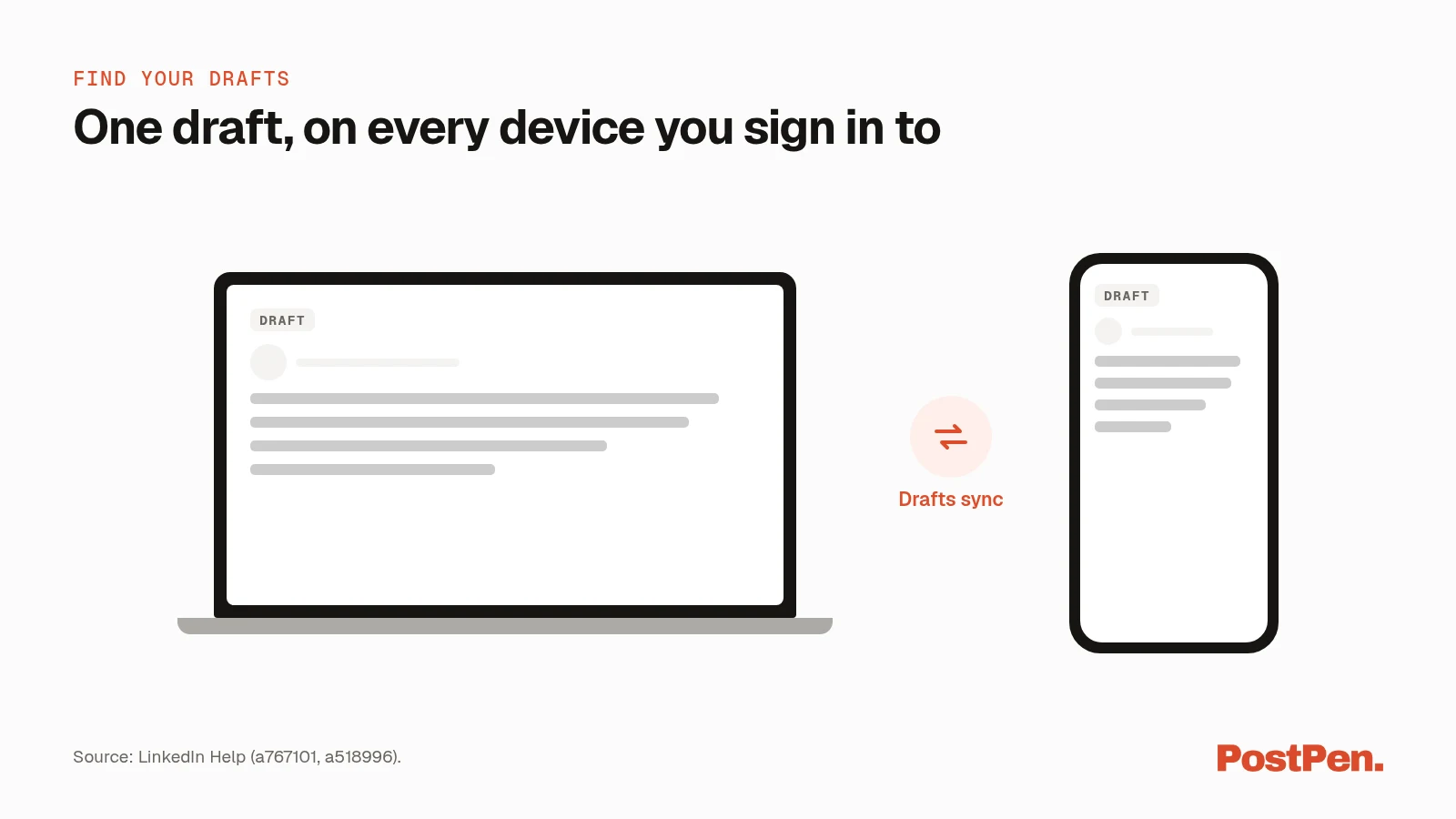
Drafts also follow you between devices. "Drafts are synced across supported devices, allowing you to access and continue working on your saved content wherever you signed in to LinkedIn" (a767101, checked October 16, 2026). Get started with posting on LinkedIn (LinkedIn Help, checked October 16, 2026) adds that you can create or edit a draft on one device and continue editing or post it from another.
So start a draft on your laptop, and you can finish it on your phone.
Edit or delete a draft
To edit a draft, open it the same way: click Start a post and keep writing. A few rules apply, per a767101 (checked October 16, 2026):
- Delete a draft: click Discard on desktop. In the app, tap Delete draft or Discard.
- Photos and videos: they can't be edited after they're saved in a draft. To change one, delete it and upload it again.
- Visibility: if you change who can see the post, you'll need to re-upload any attachments.
LinkedIn Page drafts
Page super admins and content admins can save Page posts as drafts. These steps come from Create a LinkedIn Page draft post (LinkedIn Help, checked October 16, 2026):
- Open your Page super or content admin view.
- Click Page posts in the left menu.
- Click New post in the upper-right corner, then select Start a post.
- Write the post and add any media. For a video, you can add closed captioning.
- Click Cancel in the upper-right corner.
- Click Save as draft.
To edit, publish or delete the draft later, click New post, then Start a post. You can access your own Page drafts at any time, but you can't view or publish drafts from other admins of your Page.
Want the Page post to go out at a set time instead? See how to schedule LinkedIn company page posts.
LinkedIn article drafts
Articles work differently. Manage, share, or duplicate LinkedIn article drafts (LinkedIn Help, checked October 16, 2026) says your article is saved as a draft automatically as soon as you start writing.
To find it:
- Click Write article at the top of your LinkedIn homepage. Page admins may see Publish as first: pick the account and click Next.
- Click the Manage dropdown near the upper right of the publishing tool and select Drafts.
- Click an article to keep working on it, or click the More icon to Edit or Delete it.
You can also share or copy a draft, per the same page:
- Share a draft: click Share draft, then Copy, and send the link. Members can view it only when they're logged in to LinkedIn.
- Duplicate a draft: click Manage, select Preview, then click Duplicate as draft. The copy opens in a new page.
LinkedIn Help notes this feature isn't available in the LinkedIn mobile app, so manage article drafts on desktop.
Drafts vs scheduled posts
A draft waits until you finish it, while a scheduled post goes out on its own at the time you set. Looking for a post you scheduled? See how to find scheduled posts.
Drafts your AI agent saves
When your agent saves a draft through PostPen, it calls save_draft. That creates or updates a draft in PostPen, and nothing is sent to LinkedIn until the post is scheduled or published.
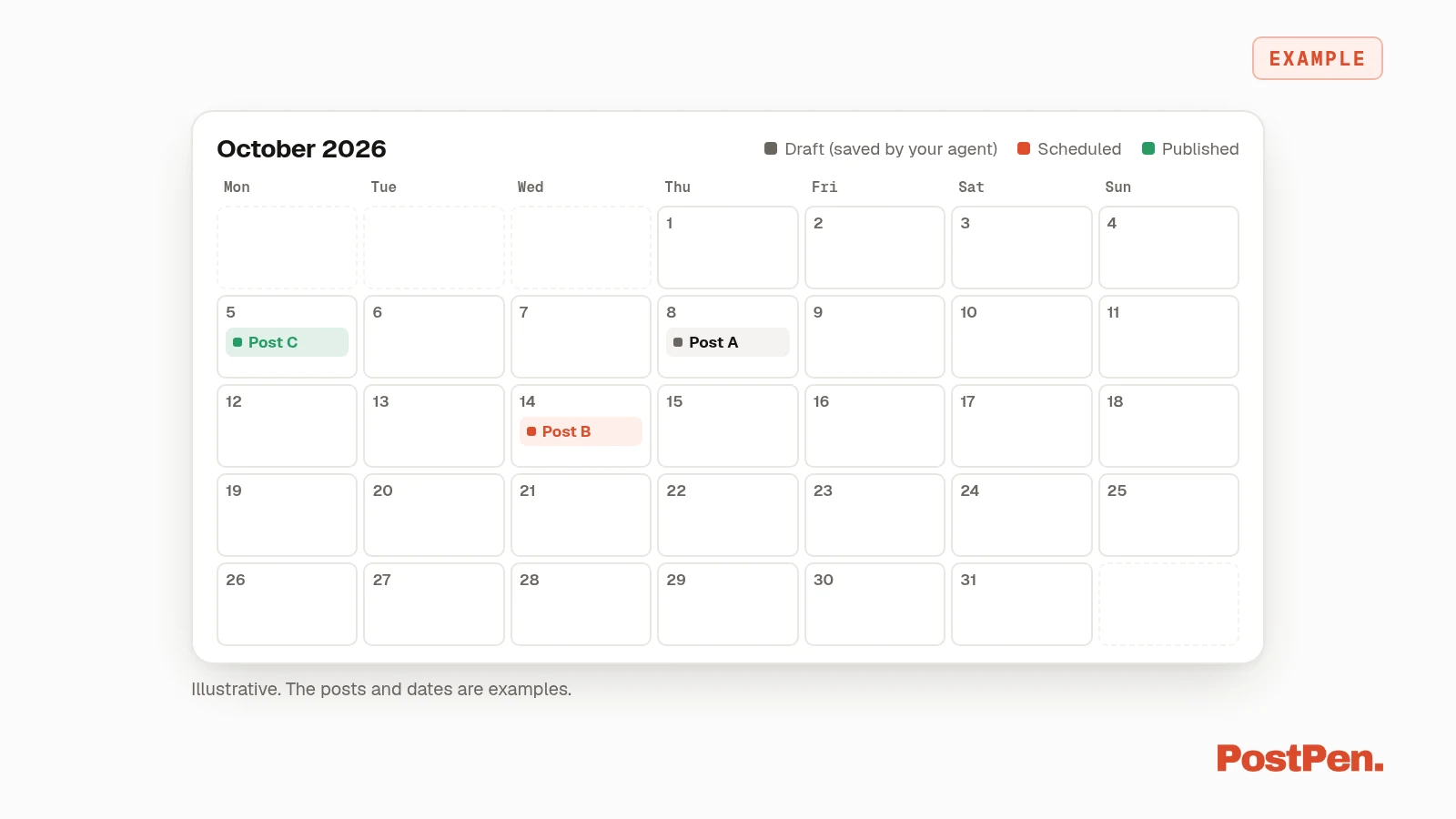
So agent drafts don't appear in LinkedIn's draft list. Look for them on your PostPen calendar, where drafts, scheduled posts and published posts sit in one month view. You can edit, move or delete anything there before it goes out.
Your agent can manage drafts with these tools:
save_draftcreates a draft, or updates a draft or an unsent scheduled post in place.list_postsreads your drafts, scheduled posts or sent posts.delete_draftpermanently deletes an unsent draft. It needsconfirm: true, and your agent should ask you first.unschedule_postmoves a scheduled post back to drafts. It also needsconfirm: true.
The Free plan includes 10 published posts per calendar month. For other plans, see pricing.
You can ask in plain words:
Save this as a draft for my company page; don't schedule it yet.
Your agent writes the post. PostPen schedules and publishes it. See the full list of PostPen's agent tools.
FAQ
Click Start a post. Your saved draft opens automatically, and drafts sync across the devices where you're signed in.
While writing the post, click Cancel, then choose Save as draft.
No. Photos and videos can't be edited once they're saved in a draft. Delete them and upload them again.
No. You can access your own Page drafts, but you can't view or publish drafts from other admins.
No. Through PostPen, agent drafts stay in PostPen and appear on your PostPen calendar. Nothing goes to LinkedIn until the post is scheduled and published, or published now.
Keep your drafts moving
Save with Cancel, then Save as draft. Find your draft by clicking Start a post on any device. Page drafts live under Page posts, and article drafts under Manage > Drafts.
Start free. Your agent writes the post, and PostPen schedules and publishes it.