
LinkedIn engagement rate: what it is and how to calculate it
By PostPen Team ·
LinkedIn engagement rate is the share of impressions that led to an interaction. For Page posts, LinkedIn Help defines it as interactions per impression, where interactions include clicks, reactions, comments and shares.
To calculate it yourself, divide a post's interactions by its impressions and multiply by 100. Member post analytics show engagements but no engagement-rate figure, so for a personal post you work it out yourself.
Start free to let your agent read your post numbers through PostPen. Your agent writes the post, and PostPen schedules and publishes it.
What LinkedIn counts as engagement
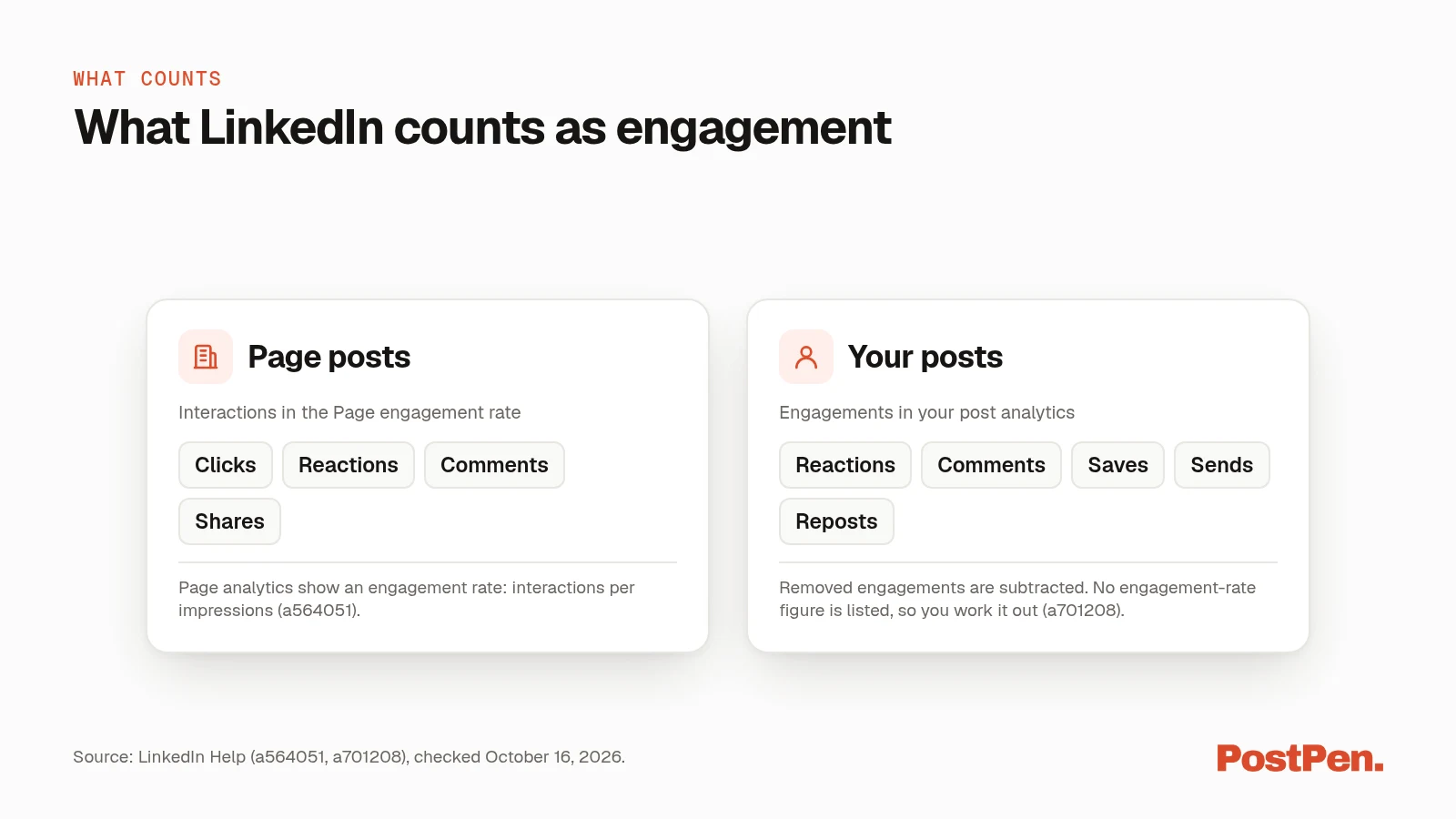
LinkedIn uses two different lists, depending on whether the post is from a Page or from you.
For Pages, Content analytics for your LinkedIn Page (LinkedIn Help, checked October 16, 2026) says engagement rate "Shows the ratio of interactions per impressions on your post. Interactions include clicks, reactions, comments, and shares."
For your own posts, Combined post analytics (LinkedIn Help, checked October 16, 2026) defines engagements as "The total number of engagements on your posts, including reactions, comments, saves, sends, and reposts."
| Page posts (a564051) | Your posts (a701208) | |
|---|---|---|
| Clicks | Yes | Not listed |
| Reactions | Yes | Yes |
| Comments | Yes | Yes |
| Shares or reposts | Yes (shares) | Yes (reposts) |
| Saves | Not listed | Yes |
| Sends on LinkedIn | Not listed | Yes |
| Engagement rate shown | Yes | No |
One more rule for your posts: total engagements are engagements received minus any that were removed. LinkedIn Help counts an engagement as removed when a member takes back a reaction or deletes a comment, for example (a701208, checked October 16, 2026).
Impressions are the number of times a post was displayed on screen (a701208, checked October 16, 2026). For the full story on impressions and members reached, see what impressions on LinkedIn mean.
The LinkedIn engagement rate formula
Here's the formula in one line:
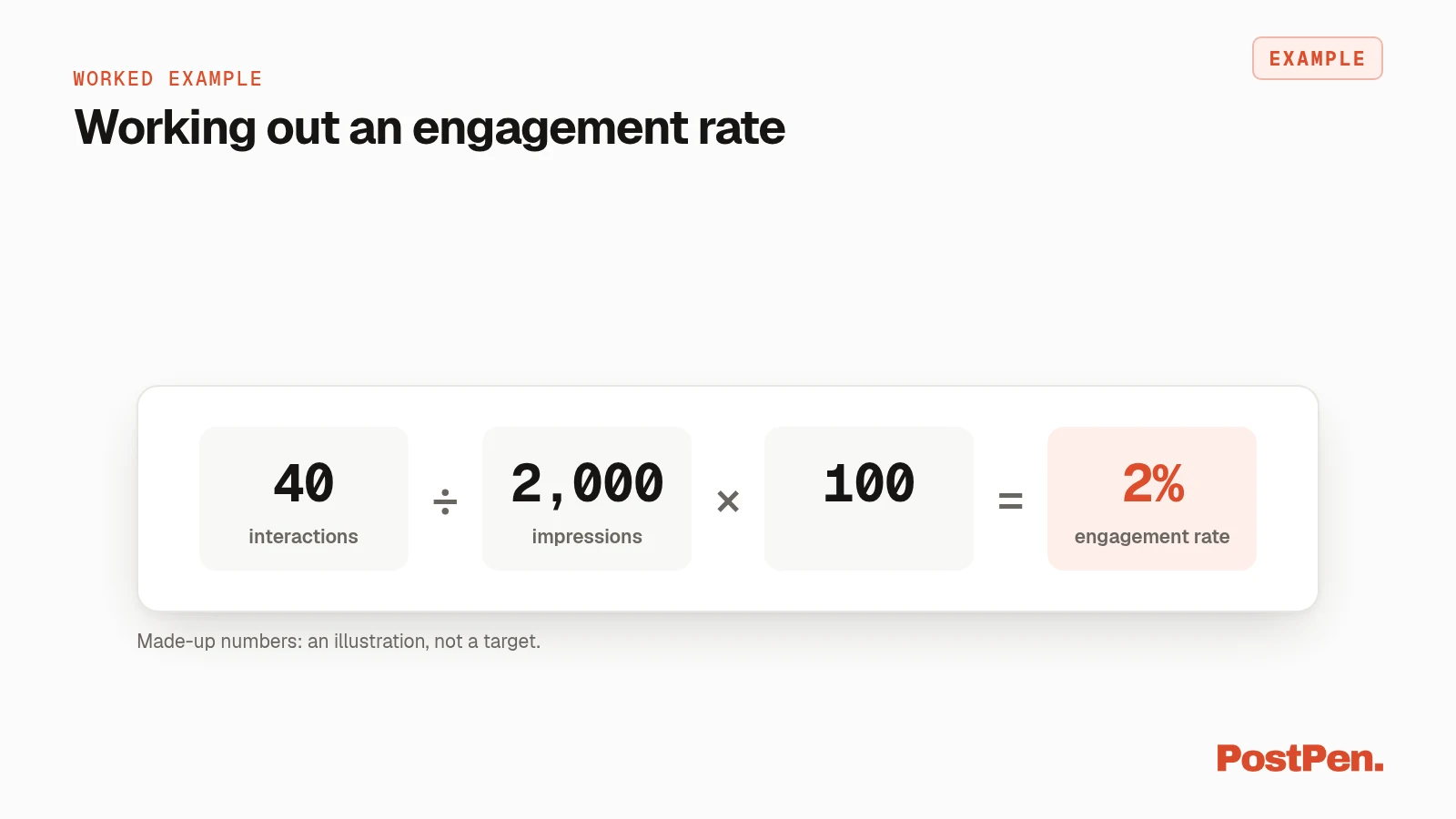
Engagement rate = (interactions ÷ impressions) × 100
This is plain arithmetic. It follows from LinkedIn's own wording, "the ratio of interactions per impressions" (a564051, checked October 16, 2026), turned into a percentage.
How to calculate engagement rate on LinkedIn
- Open the post's analytics and note its impressions.
- Add up the interactions you want to count. For a Page post, that's clicks, reactions, comments and shares.
- Divide the interactions by the impressions.
- Multiply by 100 to get a percentage.
Example: a post has 40 interactions and 2,000 impressions. 40 ÷ 2,000 = 0.02, and 0.02 × 100 = 2%.
These numbers are made up to show the math. The example is an illustration, not a target, and 2% is not a figure to aim for.
Where to see your engagement rate
Page admins: LinkedIn shows engagement rate in your Page's content analytics. It appears next to impressions in the metrics, in the all-posts view and in organic stats, per a564051 (checked October 16, 2026).
Members: your analytics show impressions and engagements, and you can switch the view between the two (a701208, checked October 16, 2026). There's no engagement-rate figure for member posts. So take the two numbers and use the formula above.
Need help opening those screens? See LinkedIn post analytics for AI agents.
Why your engagement rate differs between tools
The same post can show different rates in different places. Each tool decides which interactions go on top of the fraction.
Some count clicks, as LinkedIn does for Pages. Some count saves and sends, which LinkedIn lists as engagements for your own posts. Others leave one or more of these out.
Your own activity matters too. View post analytics for your content (LinkedIn Help, checked October 16, 2026) says "Your own views, social engagements, link engagements, saves, and sends are counted towards the analytics of your content." A tool that drops your own activity will show different totals.
The LinkedIn API uses the same idea for Pages. In Organization Share Statistics (Microsoft Learn, checked October 16, 2026), the engagement field is the "Number of organic clicks, likes, comments, and shares over impressions." Note the word organic: that field doesn't count sponsored activity.
The fix is simple. Compare like with like: the same source, the same kinds of interactions and the same kind of post.
How PostPen calculates engagement rate for your agent
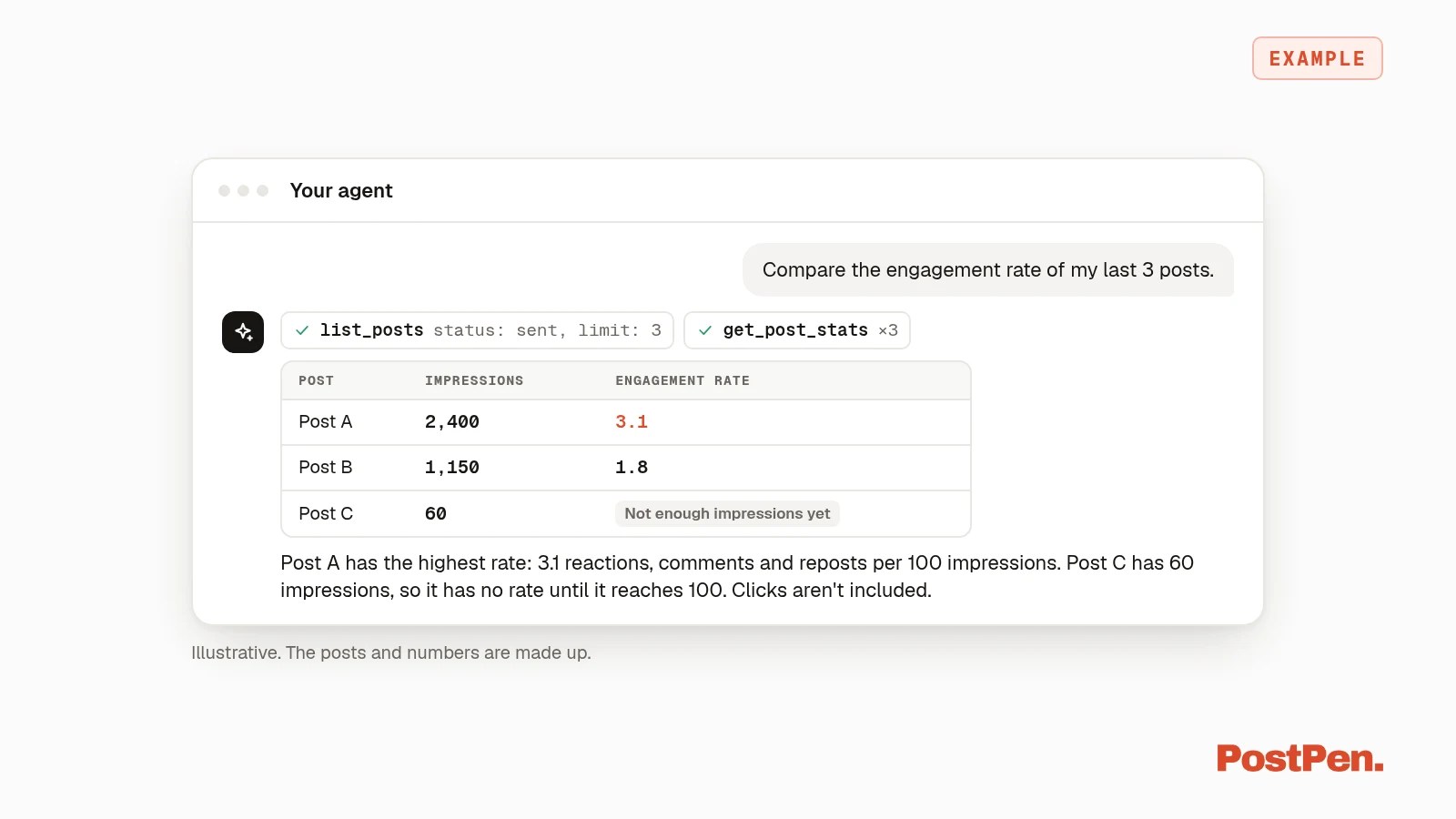
When your agent reads a published post through PostPen, it calls get_post_stats. That returns impressions, reach, reactions, comments and reposts, plus clicks for company page posts only.
It also returns engagement_rate:
- Formula: reactions, comments and reposts per 100 impressions.
- Minimum: it's null until the post has at least 100 impressions, so your agent won't score a post on very few impressions.
- No clicks: clicks aren't part of the rate. It can read lower than a Page figure from LinkedIn that includes clicks.
That's the same formula idea with a shorter list of interactions. When you compare posts, compare PostPen's rate with PostPen's rate.
You can ask in plain words:
Compare the engagement rate of my last 3 posts.
Your agent writes the post. PostPen schedules and publishes it, and get_post_stats lets your agent read the numbers afterward. See the full list of PostPen's agent tools.
FAQ
Divide interactions by impressions and multiply by 100. For Page posts, LinkedIn counts clicks, reactions, comments and shares as interactions.
LinkedIn Help lists engagements and impressions for member posts, but no engagement-rate figure, so you calculate it from those two numbers.
For your posts, reactions, comments, saves, sends and reposts. For Page posts, the engagement rate uses clicks, reactions, comments and shares.
Tools count different interactions. Some include clicks or saves and some don't, so compare numbers from the same source.
Reactions, comments and reposts per 100 impressions. It stays empty until a post has at least 100 impressions.
Work out your rate, then compare fairly
Divide interactions by impressions and multiply by 100. Pages see the rate in content analytics, and members calculate it from impressions and engagements. Whatever source you use, stick with it.
Start free. Your agent writes the post, and PostPen schedules and publishes it.