
LinkedIn article vs post: which to use and when
By PostPen Team ·
A LinkedIn post is a short update shared through the feed, up to 3,000 characters, with optional photos, videos or a link. A LinkedIn article is a long-form, in-depth piece written in LinkedIn's publishing tool on desktop, with a cover image, text styles and its own search settings.
Use a post for quick updates, questions and links. Use an article when the idea needs more than 3,000 characters and a structured explanation.
Start free if your agent drafts your LinkedIn posts. Your agent writes the post, PostPen schedules and publishes it.
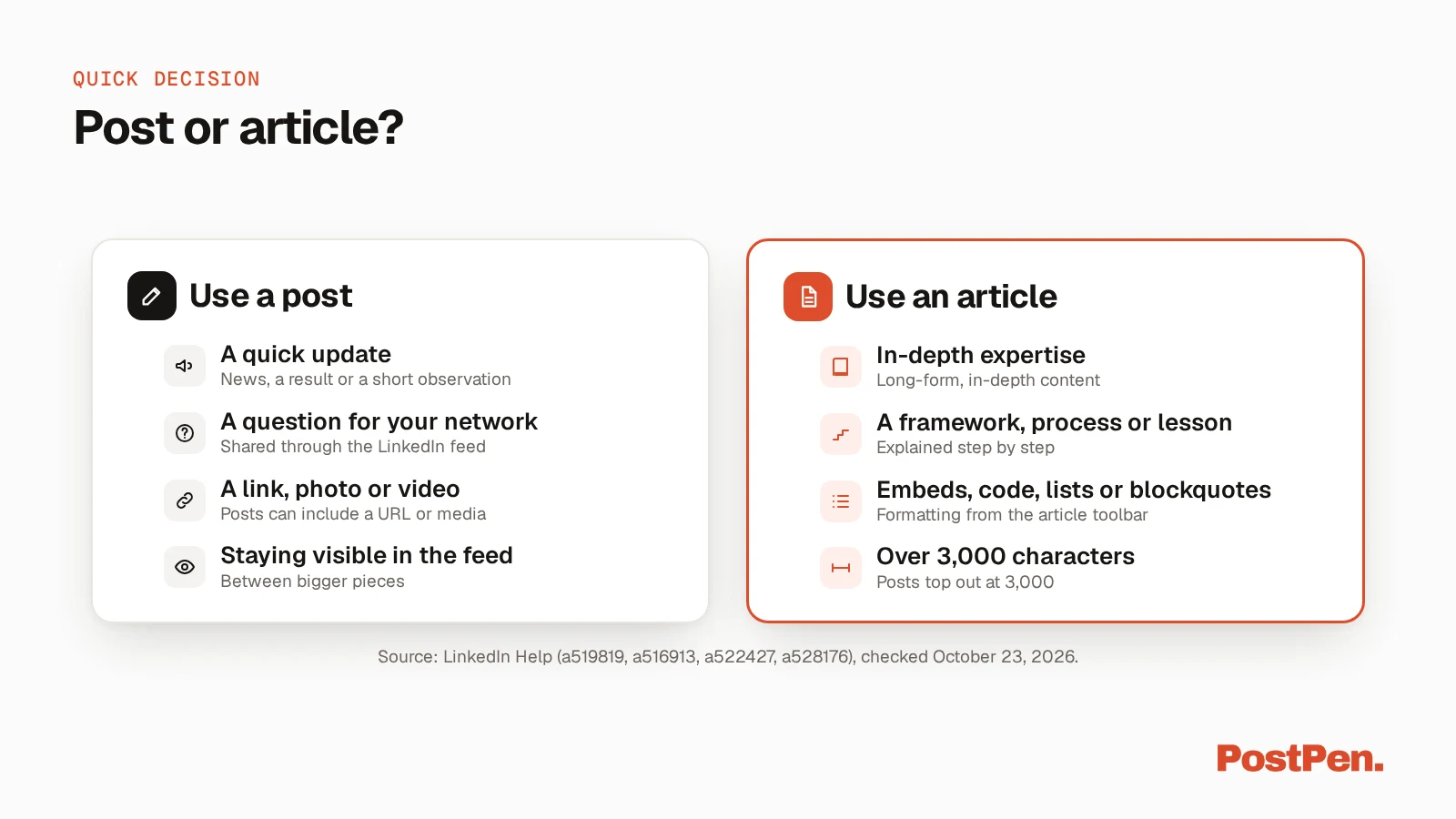
Post or article? The quick decision
LinkedIn describes the two formats differently. In Difference between posts, articles, reposts, and newsletters (a519819, LinkedIn Help, checked October 23, 2026), posts are "content shared through the LinkedIn feed," while articles are "long form, in-depth content." That split is the whole decision in miniature.
Use a post when:
- You have a quick update, such as news, a result or a short observation.
- You want to ask your network a question.
- You're sharing a link, a photo or a video.
- You want to stay visible in the feed between bigger pieces.
Use an article when:
- You're sharing in-depth expertise from your own work.
- You're explaining a framework, a process or a lesson step by step.
- The piece needs embeds, code snippets, lists or blockquotes.
- Your draft runs past 3,000 characters.
The last point comes straight from LinkedIn. Post and share updates (a528176, LinkedIn Help, checked October 23, 2026) says that if your post goes over 3,000 characters, you can write an article using LinkedIn's Publishing Platform instead.
LinkedIn articles vs posts side by side
The formats differ in more than length. Here's how they compare on the things you run into while writing.
| Post | Article | |
|---|---|---|
| Where it appears | In the LinkedIn feed (a519819) | In the Activity section of your profile (a522427), and it "may be distributed to your LinkedIn connections and beyond" (a519819) |
| How you start it | Start a post, at the top of your homepage (a528176) | Write article, in the share box on your homepage (a522427, a518996) |
| Desktop and mobile | Both, with separate desktop and mobile steps (a528176) | Desktop or a tablet browser; not available on the mobile app (a522427, a521719) |
| Formatting and media | Text, plus a photo or video, a document, a poll or a link (a528176, a519819) | Cover image or video, text styles, bold and italics, lists, blockquotes, dividers, code snippets and embeds (a522427) |
| Search settings | Not part of the post steps (a528176) | Article URL, SEO title and SEO description under Manage > Settings (a522427) |
| Newsletter | Not part of the post steps (a528176) | Can be published as a new edition of your newsletter, and subscribers are notified about new articles (a522427, a519819) |
| Scheduling | Clock icon in the composer (a528176) | Clock icon next to Publish (a522427) |
Posts top out at 3,000 characters and articles at 125,000 (see our LinkedIn character limit guide).
All rows: LinkedIn Help, checked October 23, 2026. Source pages: a522427, a518996 and a521719, plus a519819 and a528176 above.
When a post is the better choice
A post lives in the feed, so it suits anything your network should see and react to now. It can carry a photo, a video, a document or a link, and you can create it on desktop or in the mobile app (a528176 and a519819, checked October 23, 2026).
Posts also fit the moments that don't need a long explanation: a quick win, a question, an event you're attending or an article you want people to read. For the steps, see how to post on LinkedIn.
When an article is the better choice
Tips for writing articles on LinkedIn (a516913, LinkedIn Help, checked October 23, 2026) says articles should share your professional expertise. It calls them "longer, in-depth pieces" where you can write about challenges you've faced, opportunities you've seized or important trends in your industry.
The same page gives three practical pointers. Write about areas where you have experience, keep each article focused on one topic, and know that the best-received articles are "more than three paragraphs."
It also suggests adding pictures, videos, presentations and documents to show concrete examples. You can share a draft with colleagues for feedback before you publish.
How to write a LinkedIn article
These steps follow Write and publish articles on LinkedIn (a522427, LinkedIn Help, checked October 23, 2026). Use LinkedIn on desktop, because the feature isn't available in the mobile app.
- Click Write article in the share box near the top of your homepage. If you're a super admin or content admin of a LinkedIn Page, choose an account under Publish as and click Next.
- Use the dropdown next to your name to publish as yourself or as a Page you manage. You can also choose an individual article or a new edition of your newsletter.
- Click Upload from computer above the title to add a cover image or video.
- Type your title, then write in the Write here field. The toolbar adds media, a Link button, code snippets, embeds and formatting such as lists, blockquotes and dividers. Type @ to mention a member or a LinkedIn Page.
- Open the Manage dropdown and select Settings to set the article URL, an SEO title and an SEO description.
- Select Preview to check the article. From there, Share draft lets you get feedback first, and viewers need to be logged in to LinkedIn.
- Click Next, add optional commentary, then click Publish. To publish later, click the Clock icon next to Publish and follow the prompts.
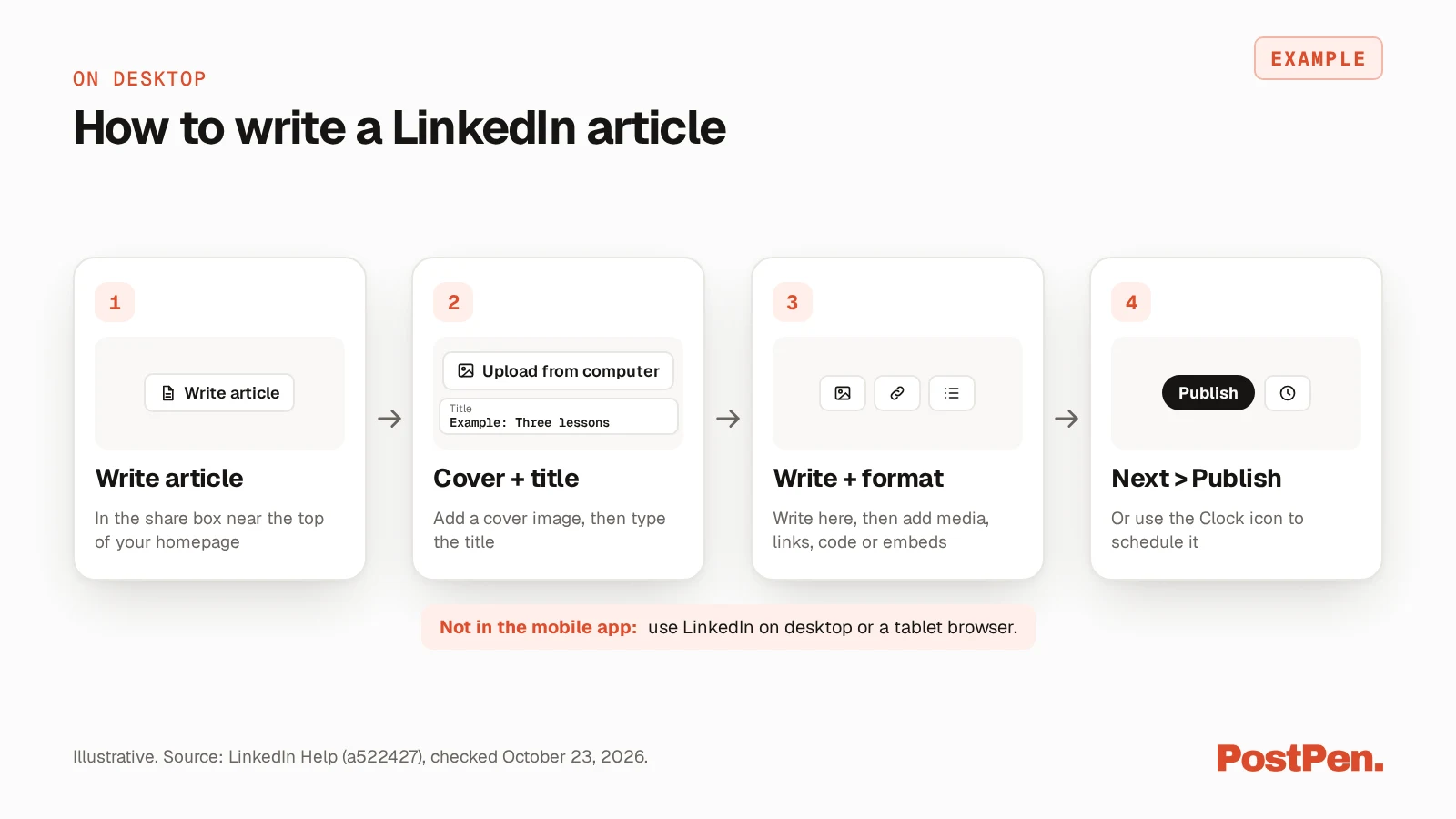
Two things to know before you start:
- LinkedIn saves your article as a draft as soon as you start writing (a523042, checked October 23, 2026). See where LinkedIn keeps article drafts.
- You can't insert tables in an article (a521719, checked October 23, 2026). For the cover, see LinkedIn image sizes.
After publishing, you can turn off comments on the article, and you can edit or delete it at any time (a522427, checked October 23, 2026).
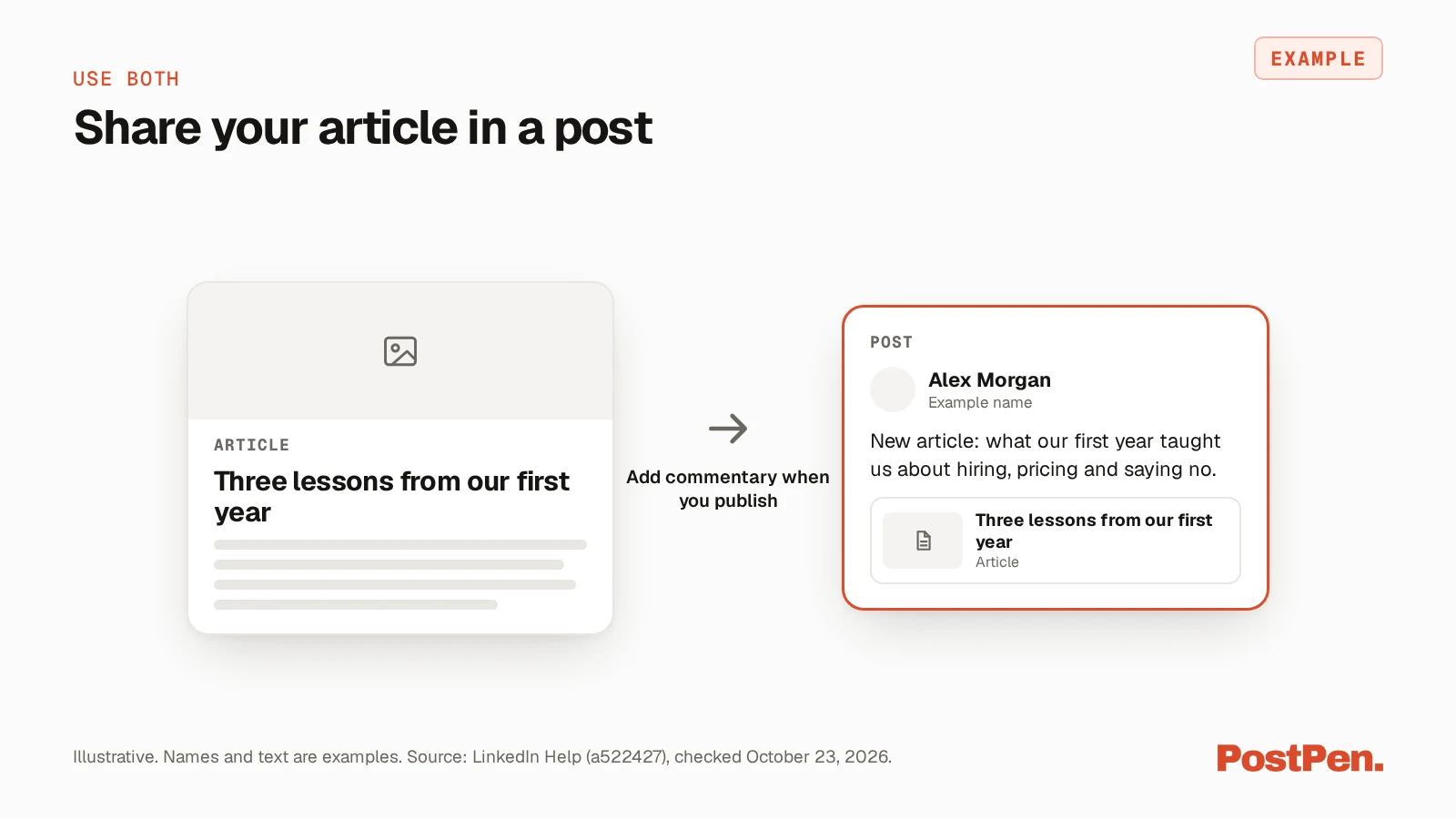
Use both
You don't have to pick one format forever. When you publish an article, a522427 gives you a field called "Tell your network what your article is about" for commentary that goes out with it.
A regular post that links to the article works too. Write the post as a short pointer to the full piece.
Where PostPen fits
PostPen publishes posts, not articles. Your agent writes the post, and PostPen schedules and publishes it to your LinkedIn profile or company pages, with text up to 3,000 characters. Write articles yourself in LinkedIn's editor on desktop, and your agent can draft a post that shares one.
FAQ
A post is content shared through the LinkedIn feed and can include photos, videos or a link. An article is a long-form, in-depth piece written in LinkedIn's publishing tool, and it appears in the Activity section of your profile.
Write a post for a quick update, a question or a link. Write an article when your idea needs more than 3,000 characters, some structure and an in-depth explanation.
On desktop, click Write article in the share box at the top of your homepage. Add a cover image, a title and your text, then click Next and Publish.
No. LinkedIn Help says the article feature isn't available on the LinkedIn mobile app, so use LinkedIn on desktop.
No. PostPen publishes posts, not articles. Your agent writes the post, and PostPen schedules and publishes it to your LinkedIn profile or company pages.
Pick the format, then publish
Short and timely goes in a post. Long and structured goes in an article, and a post can point people to it.
Start free. Your agent writes the post, and PostPen schedules and publishes it.