
How to post on LinkedIn
By PostPen Team ·
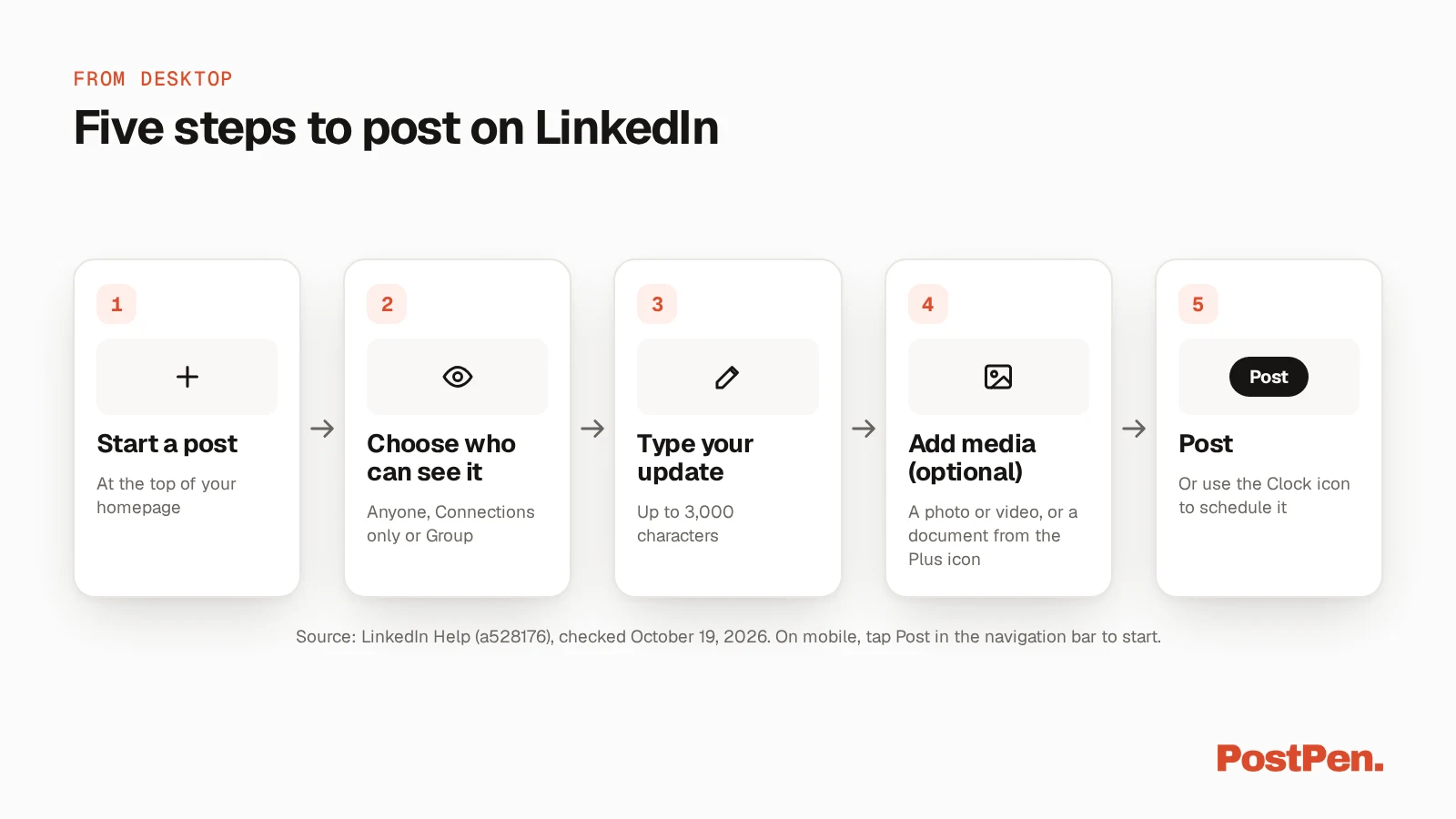
To post on LinkedIn, click Start a post at the top of your homepage and choose who can see it and who can comment. Type your text, add a photo, video or document if you want, then click Post.
On mobile, tap Post in the navigation bar, type your update and tap Post. Posts can contain up to 3,000 characters.
Start free to let your agent post to LinkedIn through PostPen. Your agent writes the post, and PostPen schedules and publishes it.
How to post on LinkedIn from desktop
Post and share updates (LinkedIn Help, checked October 19, 2026) gives these steps:
- Click Start a post at the top of your LinkedIn homepage.
- Click the name dropdown and choose your post settings.
- On the "What do you want to talk about?" screen, type your post. You can use the icons to add emojis, media, an event or a celebration, or click the Plus icon for more options.
- Optional: click the Clock icon to schedule your post for a specific date and time.
- Click Post.
The post settings in step 2 are:
- Who can see your post: Anyone, Connections only, or Group.
- Who can comment on your post: Anyone, Connections only, or Off.
- Brand Partnership: turn the toggle on to label your post as a brand partnership.
If you're a super admin or content admin of a LinkedIn Page, you can also share updates directly from your LinkedIn homepage (a528176, checked October 19, 2026).
How to post on LinkedIn from mobile
The LinkedIn app uses a few more taps (a528176, checked October 19, 2026):
- Tap Post in the navigation bar.
- Tap the Anyone dropdown beside your profile photo and choose who can see your post, who can comment, and whether to turn on the Brand Partnership label.
- On the "Share your thoughts…" screen, type your content.
- Tap the Media icon to add a photo or video.
- Tap the Plus icon to view more options.
- Choose Media, Event, Celebration, Job, Poll or Document.
- Optional: tap the Clock icon to schedule your post.
- Tap Post.
If you manage a Page, tap your name in step 2 and choose whether to post as your profile or as the Page.
What you can add to a post
Every post starts as text. Get started with posting on LinkedIn (LinkedIn Help, checked October 19, 2026) lists the main ways to share: Start a post for your thoughts, Photo for one or more images, Video for a video, and Write article for long-form content.
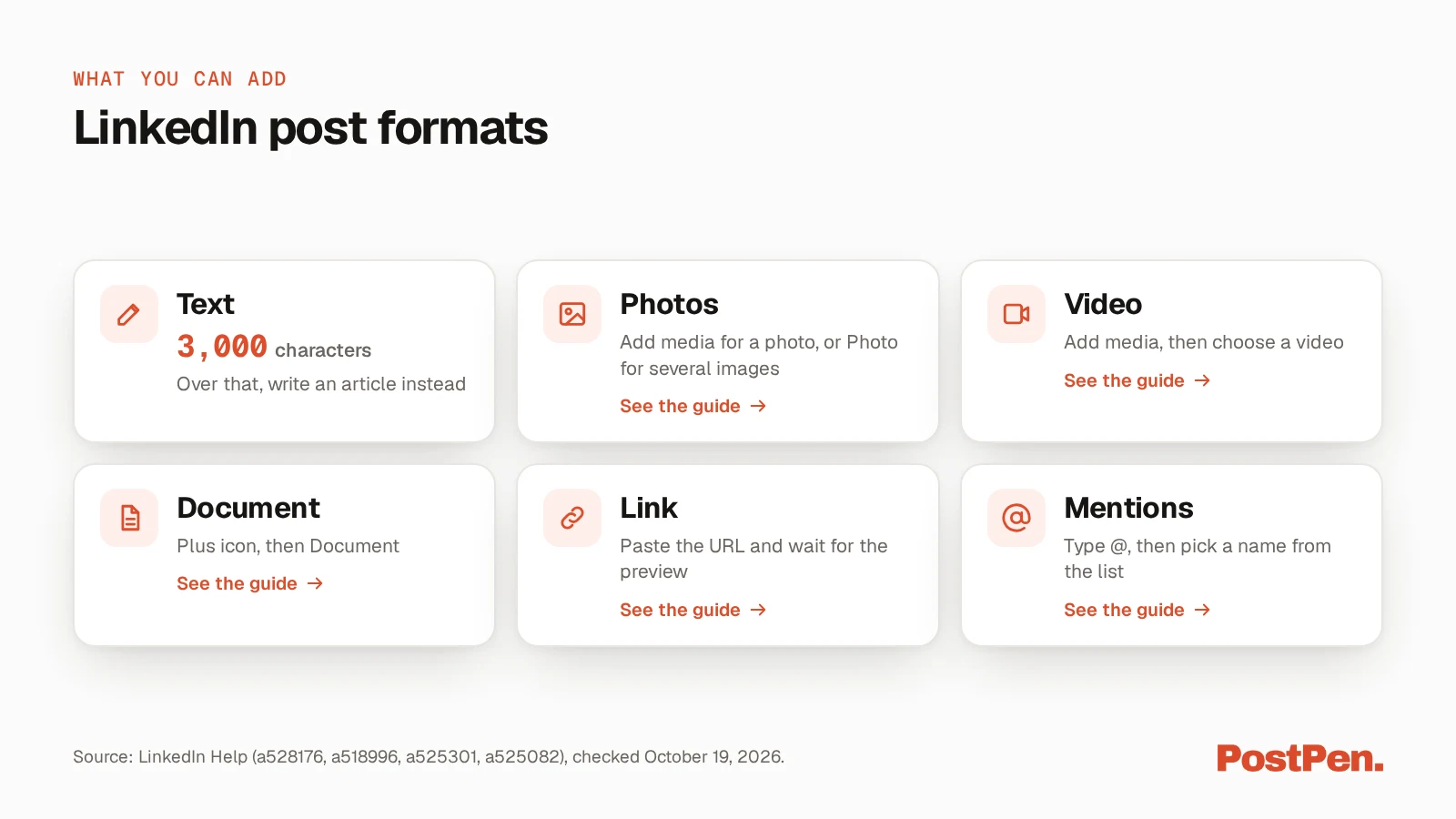
LinkedIn says posts can contain up to 3,000 characters (a528176, checked October 19, 2026). If your post runs longer, you can write an article instead. Our guide to the LinkedIn character limit covers the other limits.
Photos
On desktop, click the Add media icon in the composer to add a photo. On mobile, tap the Media icon (a528176, checked October 19, 2026). To share more than one image, start from Photo in the share box (a518996, checked October 19, 2026).
Before you post, check how the image is cropped in the preview. For sizes and ratios, see our LinkedIn image size guide.
Video
Videos go in through the same Add media icon on desktop, or the Media icon on mobile (a528176, checked October 19, 2026). You can also start from Video in the share box (a518996, checked October 19, 2026).
For video specs, see our guide to posting video on LinkedIn.
A document (carousel)
To add a document on desktop, click the Plus icon in the composer, then the Document icon. On mobile, tap the Plus icon, then Document (a528176, checked October 19, 2026).
To turn a PDF into a carousel, see our guide to making a carousel on LinkedIn. It covers the file rules.
A link
Share articles or links (LinkedIn Help, checked October 19, 2026) says to paste the link or type the URL into the post box. Allow a few seconds for a preview image to show. If LinkedIn can't fetch one, you can still share the update as a link.
If the preview looks wrong, see how to add a link to a LinkedIn post.
Mentions
To mention someone, type "@" and start typing their name, then pick them from the list (Mention people in your posts, LinkedIn Help, checked October 19, 2026). Our guide to tagging someone on LinkedIn has the rest.
Polls, events, celebrations and hiring posts
When you create a post, you can also celebrate an occasion, create an event, share that you're hiring or create a poll (a518996, checked October 19, 2026).
Post as a LinkedIn Page
To post as a Page, you need to be a super admin or content admin of it. Post as your LinkedIn Page (LinkedIn Help, checked October 19, 2026) says Page admins can post text, images, videos and documents.
On desktop:
- Go to your Page's super admin or content admin view.
- Click Page posts in the left menu.
- Click Start a post and enter your text or a URL.
- Click the Pencil icon to upload a photo, video or document.
- Click the Page name to set who sees it: Anyone or Targeted Audience. The default is Anyone.
- Click the Page name, then Comment Control, and choose Anyone or No One.
- Click Post.
On mobile, tap Dashboard, select Page posts, then tap Post. The audience defaults to Anyone and can't be changed on mobile (a1660869, checked October 19, 2026).
To plan Page posts ahead, see how to schedule LinkedIn company page posts.
Save, schedule or edit a post
- Save a draft: click Cancel while you're writing, then Save as draft (Save a post as a draft, LinkedIn Help, checked October 19, 2026). Our LinkedIn drafts guide covers the rest.
- Schedule it: click the Clock icon before you post (a528176, checked October 19, 2026). See how to schedule LinkedIn posts.
- Edit or delete it later: our guide to editing or deleting a LinkedIn post walks through both.
LinkedIn post best practices (a quick checklist)
Run through these before you click Post:
- Lead with the point. Put the main idea in the first line.
- Keep it under 3,000 characters. Longer text belongs in an article.
- Check the preview or crop. Look at how the image, video or link preview shows before you post.
- Pick the right audience. Check who can see the post and who can comment.
- Read it once on mobile. Check the line breaks and media on a phone screen.
For help with hooks, structure and formatting, see how to write LinkedIn posts with your AI agent.
Posting from your AI agent
If you already work with an AI agent, it can handle the posting too. Your agent writes the post, and PostPen schedules and publishes it to your LinkedIn profile or company pages.
What your agent can send through PostPen:
- Text up to 3,000 characters.
- Media: up to 9 images, one mp4 video or one PDF per post. Types can't be mixed in one post.
- A first comment up to 1,250 characters, posted right after the post goes out.
- A destination: your profile, or a company page on the Organization or Enterprise plan.
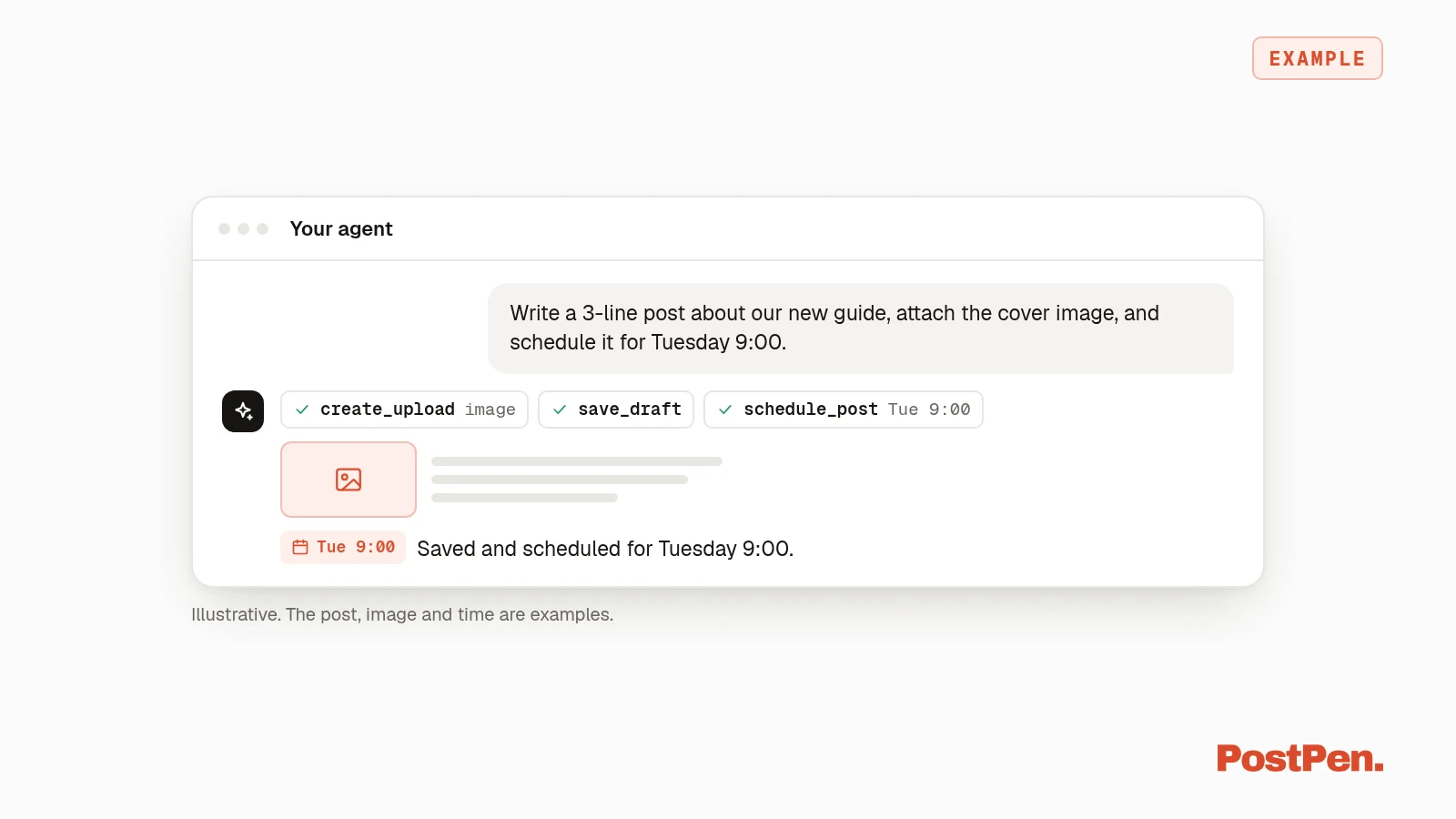
Your agent saves the post as a draft with save_draft. It then queues it with schedule_post, or sends it right away with publish_now, which is refused unless confirm is true. Everything else lands on your PostPen calendar first, so you can review it.
You can ask in plain words:
Write a 3-line post about our new guide, attach the cover image, and schedule it for Tuesday 9:00.
The Free plan includes up to 10 posts a month. See the full list of PostPen's agent tools.
FAQ
Click Start a post at the top of your LinkedIn homepage, choose who can see it, type your update, add media if you want and click Post.
Tap Post in the navigation bar, type your update, add a photo, video or document if you want, and tap Post.
Posts can contain up to 3,000 characters. For anything longer, LinkedIn says you can write an article instead.
You need to be a super admin or content admin of the Page. Go to your Page's admin view, click Page posts, then Start a post.
Yes, through PostPen. Your agent writes the post, and PostPen schedules and publishes it to your profile or company pages.
Start with one post
Pick a format, check who can see it and click Post. The detail guides above cover each format when you need more.
Start free. Your agent writes the post, and PostPen schedules and publishes it.