
LinkedIn post templates: 10 structures you can reuse
By PostPen Team ·
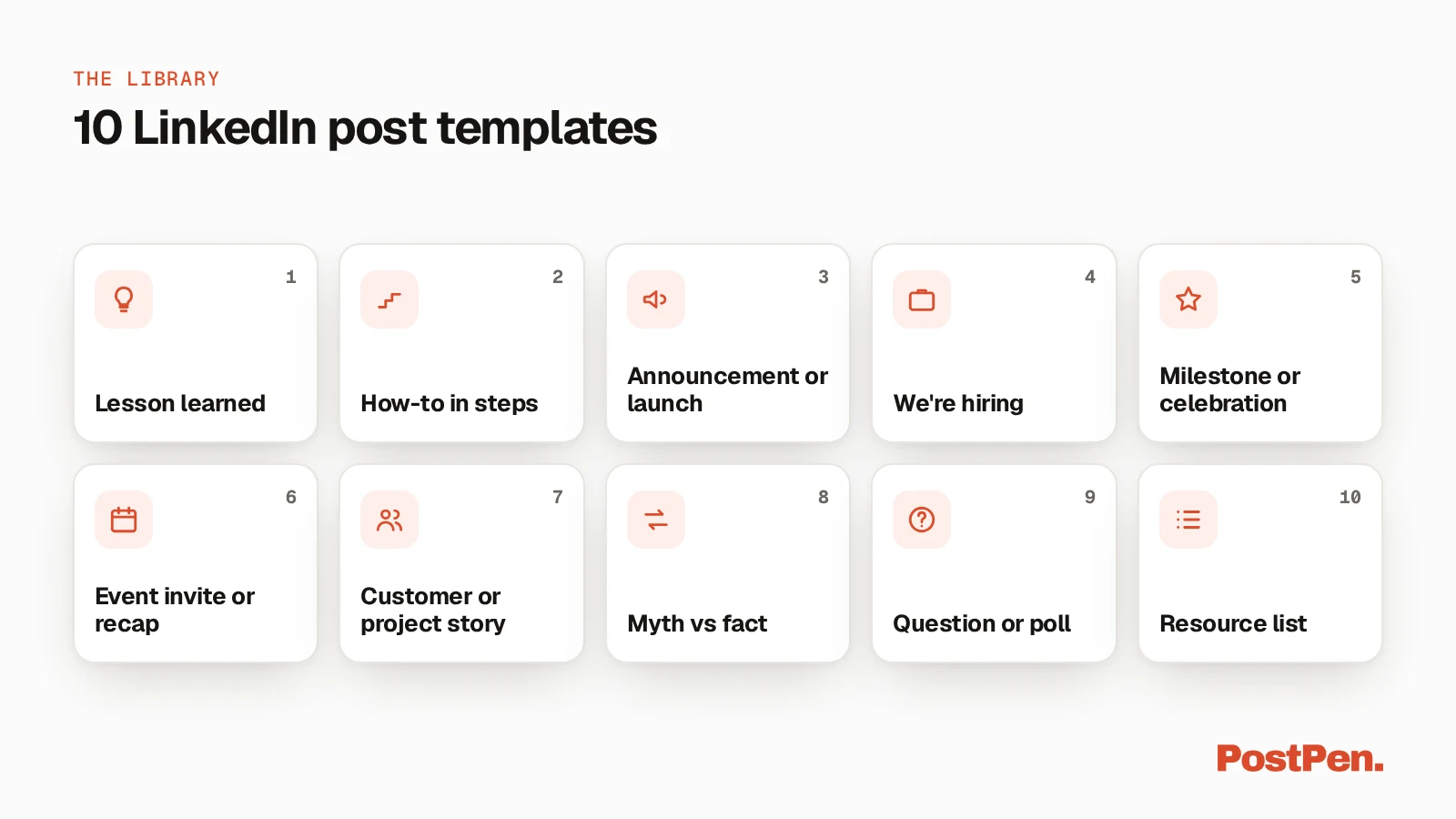
A LinkedIn post template is a reusable structure with blanks you fill in with your own details, such as the result, the lesson and the question you want to ask. Below are 10 templates for common posts: a lesson learned, a how-to, a launch, a hiring post, a milestone, an event, a customer story, myth vs fact, a question or poll, and a resource list. Each has a short example.
Keep the finished post within LinkedIn's 3,000-character limit.
Start free. Your agent writes, PostPen schedules and publishes.
How to use these templates
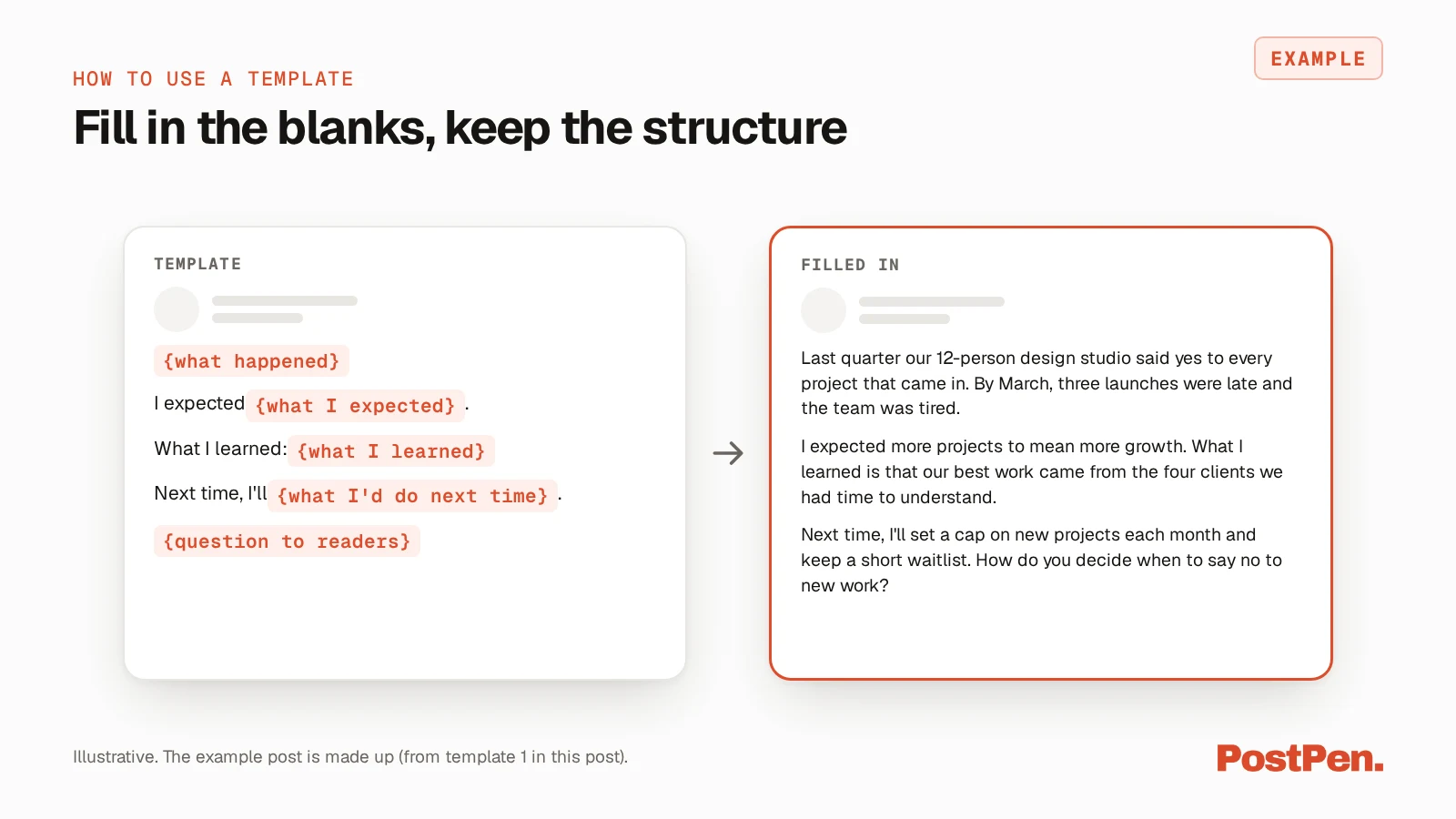
Copy a template, replace every placeholder in curly braces, such as {what happened}, with your own details, and cut any line that doesn't fit your story. Then read the whole post once before you share it.
LinkedIn's Post and share updates page (a528176, LinkedIn Help, checked October 23, 2026) says "Posts can contain up to 3,000 characters." Our guide to LinkedIn's character limits covers the other limits.
If your agent drafts for you, the prompts in our guide to writing posts with your agent pair well with these structures.
10 LinkedIn post templates
Each one has a "use it when" line, the template and an example. The names, companies and numbers in the examples are made up.
1. Lesson learned
Use it when something didn't go to plan and you took a clear lesson from it.
{what happened}

I expected {what I expected}.

What I learned: {what I learned}

Next time, I'll {what I'd do next time}.

{question to readers}
Example:
Last quarter our 12-person design studio said yes to every project that came in. By March, three launches were late and the team was tired.
I expected more projects to mean more growth. What I learned is that our best work came from the four clients we had time to understand.
Next time, I'll set a cap on new projects each month and keep a short waitlist. How do you decide when to say no to new work?
2. How-to in steps
Use it when you can solve a common problem in three short steps.
{problem in one line}

Step 1: {first step}
Step 2: {second step}
Step 3: {third step}

{what changes when you do this}

{offer: ask me for X}
Example:
Weekly team updates that nobody reads? Here's the format our support team switched to.
Step 1: Open with the one number that changed. Step 2: List three things that happened, one line each. Step 3: End with one thing you need from other teams.
The update now fits on one screen, and people reply to the last line instead of skimming past it. If you want the doc we use, comment "format" and I'll send it.
3. Announcement or launch
Use it when you have something new to share: a product, a feature, a service or a free resource.
{what's new}

It's for {who it's for}.

It does one thing: {the one thing it does}.

{where to find it}
Example:
Today we're opening a free invoice checker for freelancers.
It's for freelancers who send their own invoices. It does one thing: it flags missing details, such as a due date or payment terms, before you hit send.
You'll find it on our website, link in the first comment.
A link can go in the post itself or in the first comment, whichever suits you.
4. We're hiring
Use it when you have an open role and want people in your network to apply or pass it on.
We're hiring a {role}.

{team and what they do}

In this role, you'll:
- {thing 1}
- {thing 2}
- {thing 3}

Location: {location/remote}

To apply: {how to apply}
Example:
We're hiring a part-time bookkeeper. Our finance team is two people who look after payroll and suppliers for a 30-person catering company.
In this role, you'll reconcile accounts each week, prepare monthly reports and help us move off spreadsheets. Location: remote, with one office day a month.
To apply, send a short note and your resume to jobs@example.com.
LinkedIn's post box also has a "Share that you're hiring" option, according to Get started with posting on LinkedIn (a518996, LinkedIn Help, checked October 23, 2026). Our guide on how to post on LinkedIn covers that and the other post options.
5. Milestone or celebration
Use it when you or your team hit a milestone, such as an anniversary, a launch or a certification.
{milestone}

It took {what it took}.

Thank you to {who helped, thanks}.

Next: {what's next}
Example:
Our community garden project turns five this week. It took 40 volunteer weekends, two rebuilt sheds and a lot of borrowed tools.
Thank you to the neighbors who showed up in the rain, and to the local school that lends us its water supply every summer.
Next, we're adding raised beds so more people can join in, whatever their mobility.
The same help page lists a "Celebrate an occasion" option in the post box (a518996, checked October 23, 2026).
6. Event invite or recap
Use it when you're hosting or speaking at an event, or sharing what you learned at one.
Invite version:
{event}

When: {date/time}

Who should come: {who should come}

You'll leave with: {what they'll leave with}

How to join: {how to join}
Recap version:
Three things I learned at {event}:

1. {lesson 1}
2. {lesson 2}
3. {lesson 3}

Thanks to {thanks}.
Example (invite):
We're running a free online session on writing grant applications for small nonprofits. When: Thursday at 4 pm Eastern, for one hour.
Who should come: anyone writing their first or second grant application. You'll leave with a one-page outline you can reuse for every funder.
How to join: register at example.com/grants.
LinkedIn's post box also has a "Create an event" option (a518996, checked October 23, 2026).
7. Customer or project story
Use it when a project or a customer's problem shows something others can apply to their own work.
{who} had {problem}.

What we tried: {what we tried}

The result: {result in plain words}

What you can borrow: {what others can borrow}
Example:
A family-run bakery with two shops had a problem: staff spent every Monday morning working out who could cover which shift.
What we tried: one shared calendar, with each person adding the shifts they can't work by Friday. The result: the Monday call now takes 10 minutes instead of most of the morning.
What you can borrow: collect the "can't work" days first, then fill the gaps.
These figures are made up. Share only results you can stand behind.
8. Myth vs fact
Use it when people in your field repeat a belief you know is wrong.
Myth: {common belief}

Fact: {what's true}

Why it matters: {why it matters}

Try this: {one action}
Example:
Myth: you need a big budget to run user research. Fact: five short calls with real customers can show you where your signup form confuses people.
Why it matters: small teams skip research because it sounds expensive, then spend weeks building the wrong fix.
Try this: this week, ask three recent signups to share their screen while they set up their account.
Use this one only for facts you can support with your own experience or a source you trust.
9. Question or poll
Use it when you want your network's input on a decision or a topic.
{context in 1-2 lines}

{the question}

{option 1}
{option 2}
{option 3}
{option 4}

Why I'm asking: {why I'm asking}
Example:
We're planning next year's team offsite for 15 people and can't agree on the format.
Which would you choose: A, two days in one city; B, one day close to the office; or C, a fully remote day with a shared activity?
Why I'm asking: we want people to come back with energy, not travel fatigue.
To run it as a poll, draft the question and options with the template, then create the poll in LinkedIn. Create LinkedIn Polls (a522948, LinkedIn Help, checked October 23, 2026) says "There is a minimum of two options and a maximum of four options on a poll."
10. Resource list
Use it when you've collected useful resources on one topic and want to pass them on.
{topic}: 5 resources I keep coming back to

1. {resource 1}: {why}
2. {resource 2}: {why}
3. {resource 3}: {why}
4. {resource 4}: {why}
5. {resource 5}: {why}

If you only open one, start with {which one to start with}.

What would you add? {ask for additions}
Example:
Five resources for first-time team leads:
A one-on-one question list, for when you don't know what to ask. A simple feedback model, for hard conversations. A weekly planning template, to protect time for your own work.
A guide to running short meetings and a book on delegation, for when you're doing everyone's job, round out the five. If you only open one, start with the one-on-one questions. What would you add?
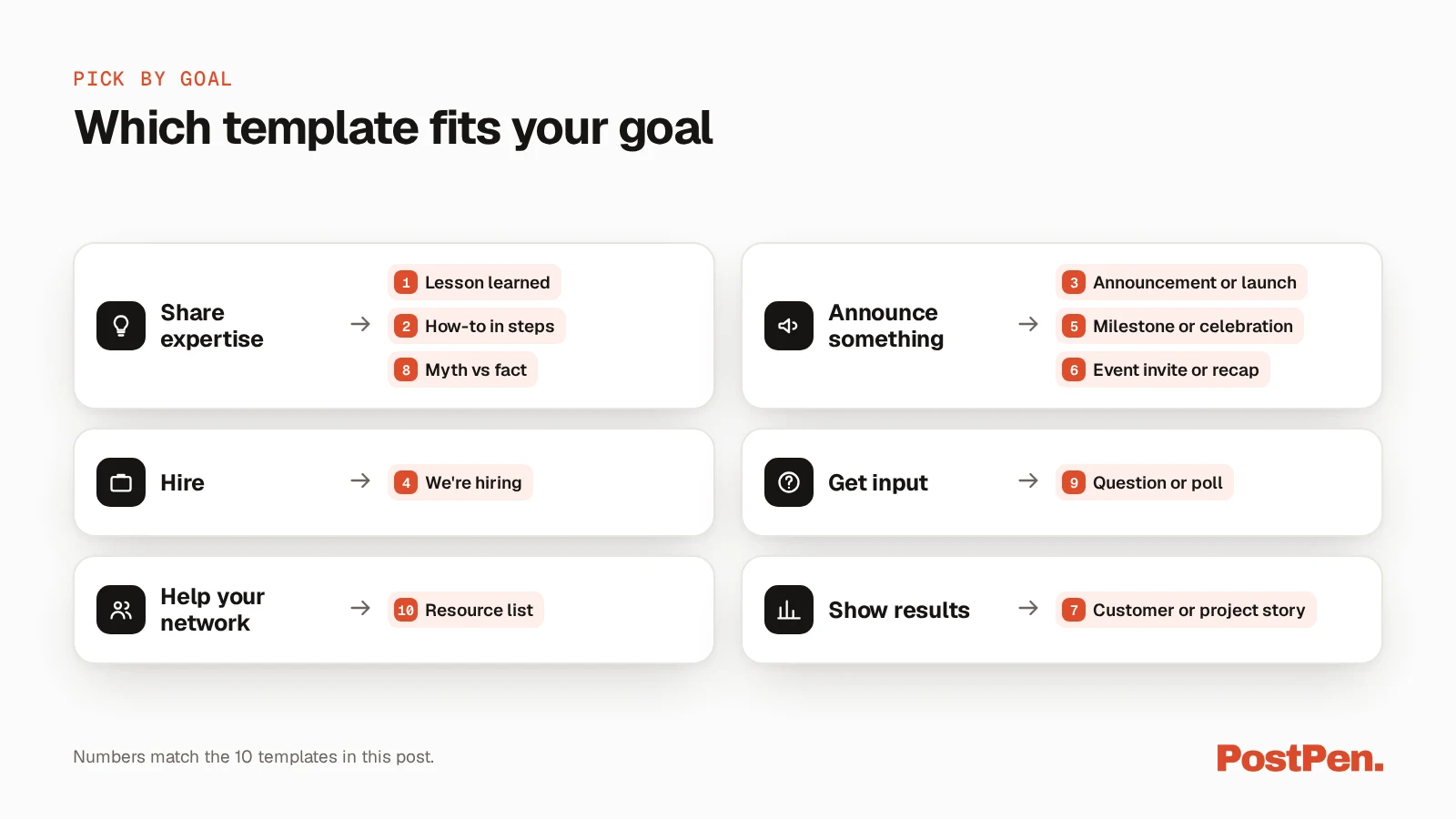
Pick a template by goal
| Goal | Templates |
|---|---|
| Share expertise | 1, 2, 8 |
| Announce something | 3, 5, 6 |
| Hire | 4 |
| Get input | 9 |
| Help your network | 10 |
| Show results | 7 |
Use a template with your agent
Save your favorite templates in a file or note your agent can read, then ask it to fill one in for this week's topic. Review the draft and change anything that doesn't sound like you. When it's ready, PostPen schedules and publishes it.
On LinkedIn, PostPen takes posts up to 3,000 characters and can attach images, a video or a PDF. It can also add a first comment, such as a link, right after the post goes live. Polls, events and hiring posts are created in LinkedIn itself.
The Free plan includes up to 10 posts a month. See PostPen's agent tools for what your agent can do.
FAQ
It's a reusable structure with blanks you fill in with your own details. You keep the order of the parts and swap in your story, result and question.
A template is the structure with blanks. An example is one filled-in version of it, so this page gives you both for each of the 10 structures.
LinkedIn Help says posts can contain up to 3,000 characters. For anything longer, LinkedIn suggests writing an article.
Yes. Draft the question and options with the template, then create the poll in LinkedIn. A poll has a minimum of two options and a maximum of four.
Yes. Give your agent a template and your details, and it writes the draft. You review it, and PostPen schedules and publishes it.
Pick one template and post this week
Pick the template that fits this week's news, fill in the blanks and cut the rest. Your agent can draft it from your notes.
Start free. Your agent writes, PostPen schedules and publishes.