
LinkedIn GIFs: how to add a GIF to posts and comments
By PostPen Team ·
You can use GIFs in LinkedIn posts, comments, replies, messages and articles. In comments and messages, select the GIF icon and pick one. In a post, add the GIF file as an image.
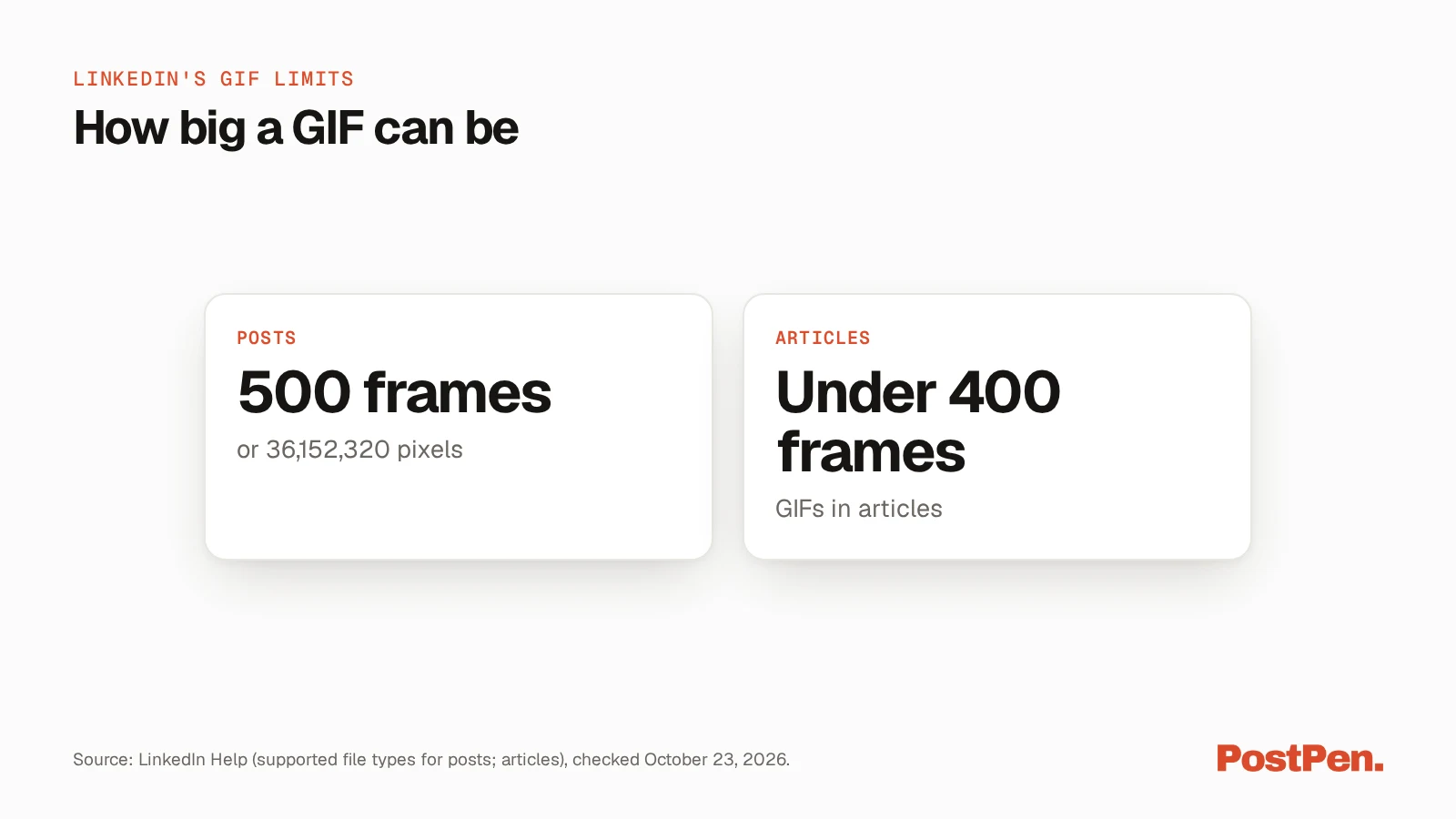
LinkedIn lists GIF limits of 500 frames or 36,152,320 pixels (under 400 frames in articles), and GIFs can't be profile, background or article cover images.
This LinkedIn GIF guide covers each place you can use one, the steps LinkedIn Help gives for each, and the limits to check when a GIF won't upload.
Start free to have your agent attach a GIF and schedule the post. Your agent writes, PostPen schedules and publishes.
Where you can use GIFs on LinkedIn
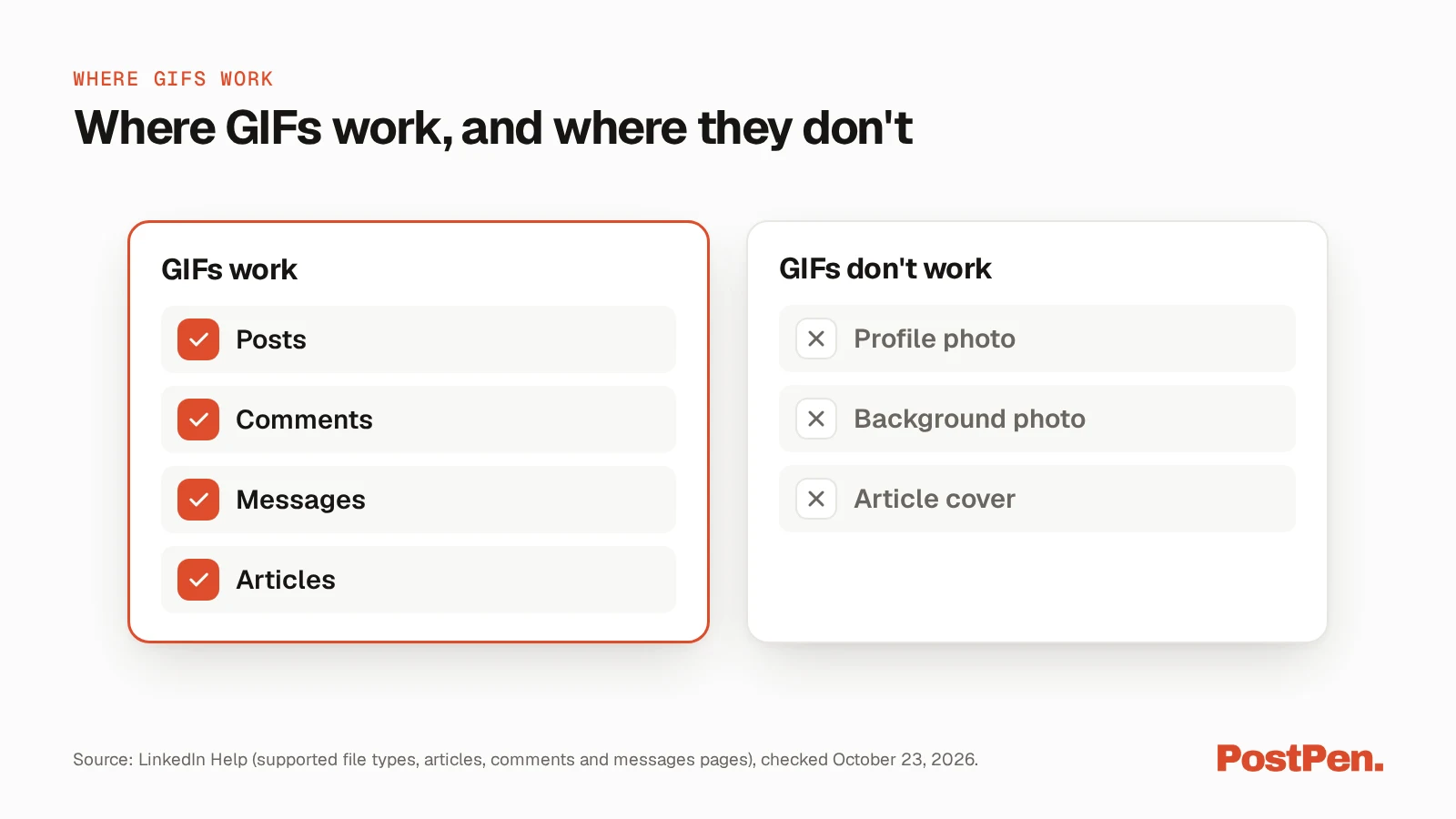
LinkedIn accepts GIFs in four places and turns them down in three. Each row below comes from a LinkedIn Help page, checked October 23, 2026.
| Place | How | Note |
|---|---|---|
| Post | Add the GIF file as an image | GIF is a supported image type on desktop, iOS and Android |
| Comment or reply | Select the GIF icon in the comment box | Same icon in replies |
| Message | Select the GIF icon in the conversation | Sends as soon as you select it |
| Article body | Upload it as an in-article image | Must be smaller than 400 frames |
| Profile photo | Not supported | GIFs aren't accepted |
| Background photo | Not supported | GIFs aren't accepted |
| Article cover | Not supported | Cover images must be JPEG, JPG, PNG or WEBP |
The sections below walk through each place in turn.
Add a GIF to a LinkedIn post
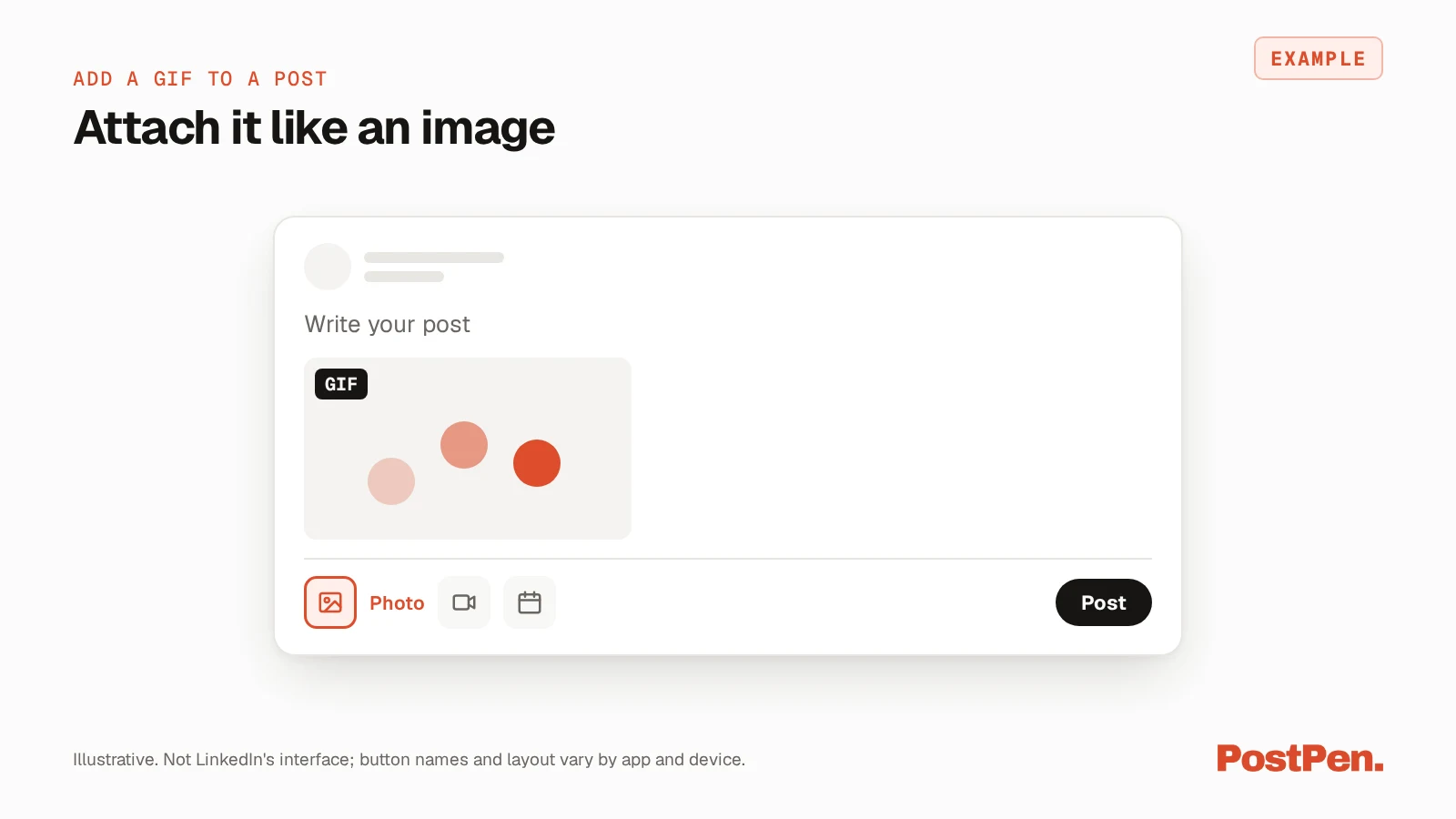
LinkedIn's Media file types supported on LinkedIn page (a564109, LinkedIn Help, checked October 23, 2026) lists GIF under Image, with a check for desktop, iOS and Android. LinkedIn's Share photos on LinkedIn page (a527229, LinkedIn Help, checked October 23, 2026) gives the steps for adding an image to a post. Neither page names GIFs in the steps, so the steps below are the photo steps.
On desktop, the Share photos page lists these steps:
- Click the Photo icon in the share box at the top of your LinkedIn homepage.
- Click Upload from computer and choose your files.
- Click ALT to add alternative text "for members using voice-over screen readers."
- Click Next, type your post text if you want, and click Post.
On mobile, the page says to tap Post, then tap the Photo icon to choose photos from your camera or gallery. On desktop, it adds: "You can also directly drag and drop or copy and paste photo/s into the share box."
The same page says "you can select up to 20 images" in one post. For image sizes, cropping and GIF cover rules, see our LinkedIn image size guide. For video files, see our LinkedIn video guide.
For the rest of the posting flow, such as visibility and comment settings, see how to post on LinkedIn.
Add a GIF to a comment or reply
LinkedIn's Comment on posts and reply to a comment page (a524166, LinkedIn Help, checked October 23, 2026) puts a GIF icon in the comment box. To add one on desktop:
- Click Comment below the post, or click in the Add a comment box.
- Type your comment.
- Click the GIF icon "to select a GIF," then click Comment.
Replies work the same way. Click Reply below a comment, type your reply, and use the same icon "to select a GIF". On mobile, the page says to tap the icon "to select a Gif" in both comments and replies.
Send a GIF in a message
LinkedIn's Send a photo, video, GIF, or emoji on LinkedIn Messaging page (a563259, LinkedIn Help, checked October 23, 2026) covers GIFs in messages. On desktop, open a conversation and select the GIF icon "to search and find GIFs."
Pick with care, because the page adds: "GIFs are sent immediately after selecting".
On iOS, tap the Attach icon and choose Send a GIF. On Android, tap the Add icon and choose GIF "to search and send GIFs."
GIFs in LinkedIn articles
LinkedIn's Add and edit images or videos, cover images, and other rich media to your article page (a521719, LinkedIn Help, checked October 23, 2026) lists GIF as a supported in-article image type. It sets a tighter frame limit than posts: "GIFs must be smaller than 400 frames."
To add one, click the Media icon in the toolbar and upload the image from your computer, or drag it into the box. The page also notes that the article tool isn't available in the LinkedIn mobile app.
A GIF can't be the article cover. The page says: "GIFs can no longer be used for the cover photos." Cover images must be JPEG, JPG, PNG or WEBP.
GIF limits on LinkedIn
The notes on LinkedIn's Media file types supported on LinkedIn page (a564109, LinkedIn Help, checked October 23, 2026) list these limits:
- "The limit for a GIF is 500 frames or 36,152,320 pixels."
- "The maximum resolution for images is 36 mega pixels."
- "GIFs are not supported on profile or background photos"
If a GIF won't upload, check it against these limits first, and see our LinkedIn image size guide for the upload size limit on post photos. In an article, the frame limit is lower: under 400 frames.
A GIF won't work as a profile or background photo, or as an article cover, whatever its size.
Schedule a GIF post with your agent
When you post through PostPen, your agent writes the post and attaches the GIF, then PostPen schedules and publishes it. PostPen accepts jpeg, png, webp and gif images, up to 5 MB each and up to 9 per post, and images can't be mixed with a video or PDF in the same post.
Our LinkedIn image size guide compares that with the 20 images LinkedIn allows when you post by hand. For the scheduling side, see how to schedule LinkedIn posts.
FAQ
Yes. LinkedIn Help lists GIF as a supported image type on desktop, iOS and Android, so you can add one to a post as an image.
Select the GIF icon in the comment box and pick a GIF. The same icon is available in replies.
Check LinkedIn's limits: a GIF can have up to 500 frames or 36,152,320 pixels. GIFs also can't be used as profile or background photos.
No. LinkedIn Help says GIFs aren't supported for profile or background photos.
Yes. Your agent writes the post and attaches the GIF, and PostPen schedules and publishes it. Each image can be up to 5 MB.
Put your GIF post on the calendar
Pick the GIF, check it against LinkedIn's frame limit, and let your agent handle the draft and the timing.
Start free and connect your agent. Your agent writes, PostPen schedules and publishes.